
The reading view
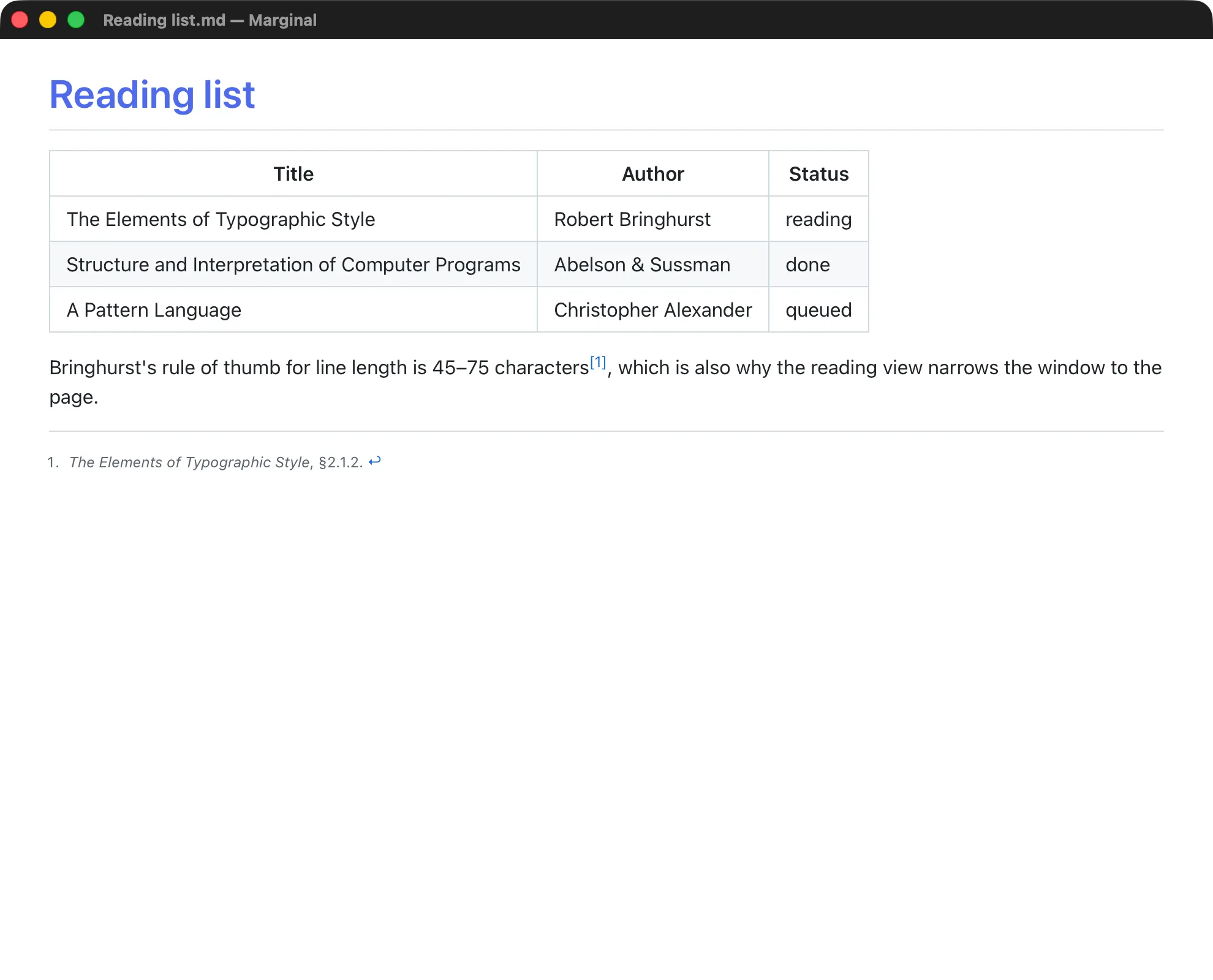
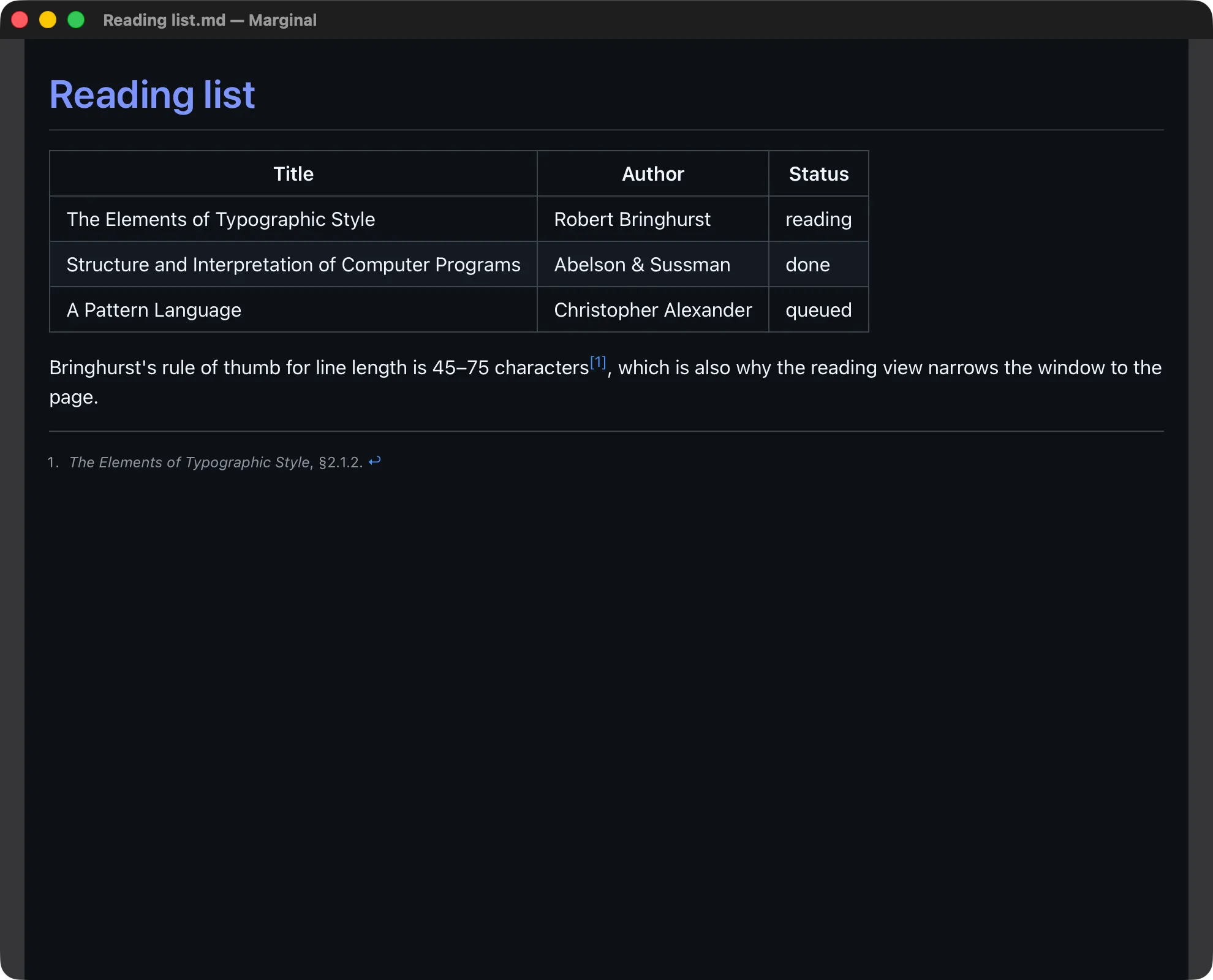
Double-click a markdown file in the Finder or Explorer and Marginal opens it as a reading view: no sidebar, tabs, toolbar, or status bar, just the rendered document, sized to the page.
In and out
Section titled “In and out”Press Esc, or pick any view mode, to get the editor back. If Marginal was already running with a workspace open, that workspace returns as it was, with the file added as a tab.
The window narrows to the width of the page when the reading view opens and widens again when it closes. Only the width moves; the height and position stay put, and a maximized or full-screen window is left alone. The narrow width is never remembered as your window size, so quitting from the reading view still reopens Marginal at the width you work at.
From the command line, --reader FILE.md opens the reading view directly.
See Command line.
Turning it off
Section titled “Turning it off”Settings ▸ General ▸ Files ▸ Disable reader mode on double-click makes a double-clicked file open in the editor instead.
Folders and multi-file selections are never affected: they open the workspace and tabs as usual.
Platform notes
Section titled “Platform notes”On Windows and Linux, marginal FILE.md from a terminal looks the same to
the app as a double-click, so it opens the reading view too. On macOS the
command line opens the editor. The terminal panel is not available in the
reading view.