
Editing with AI
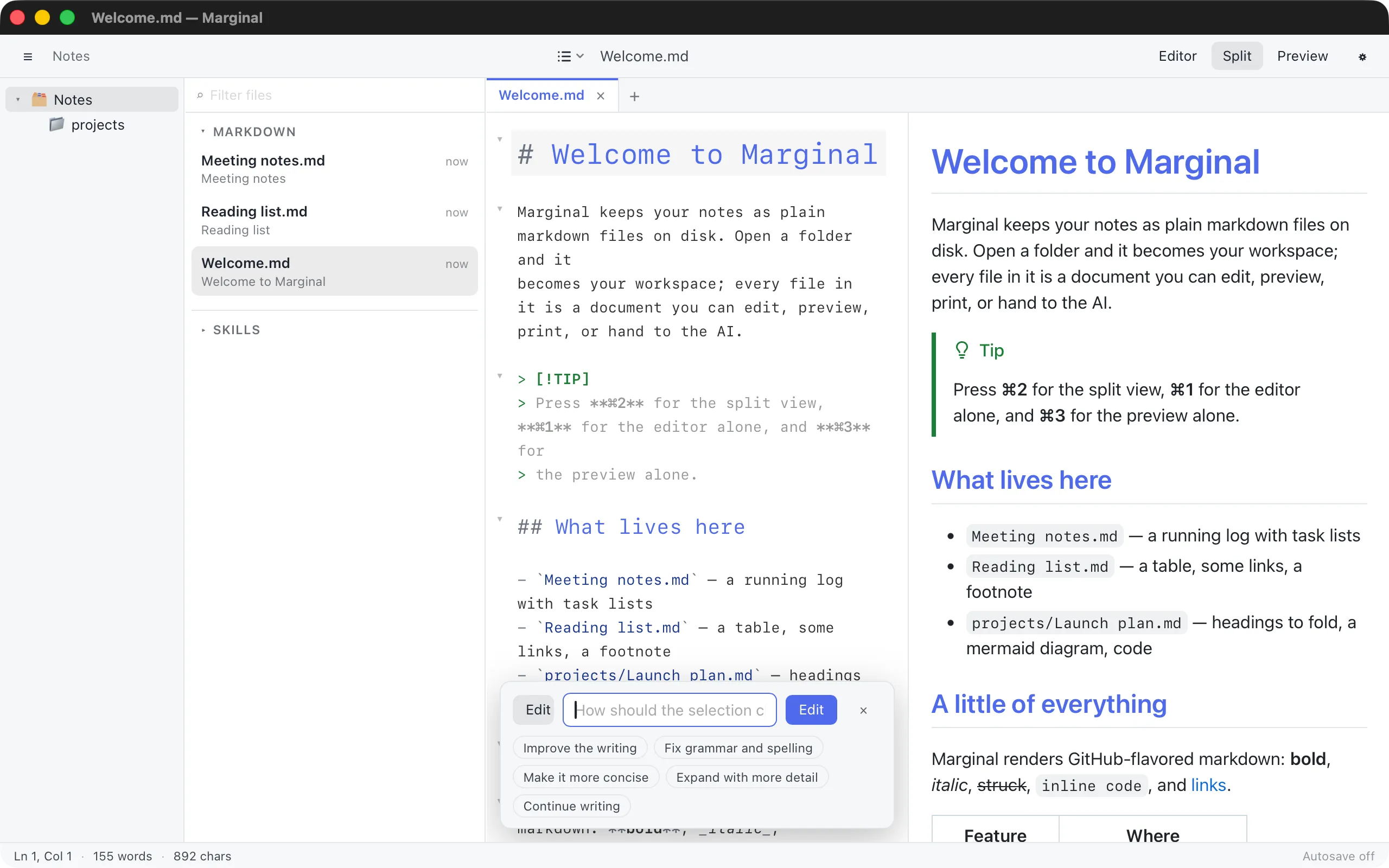
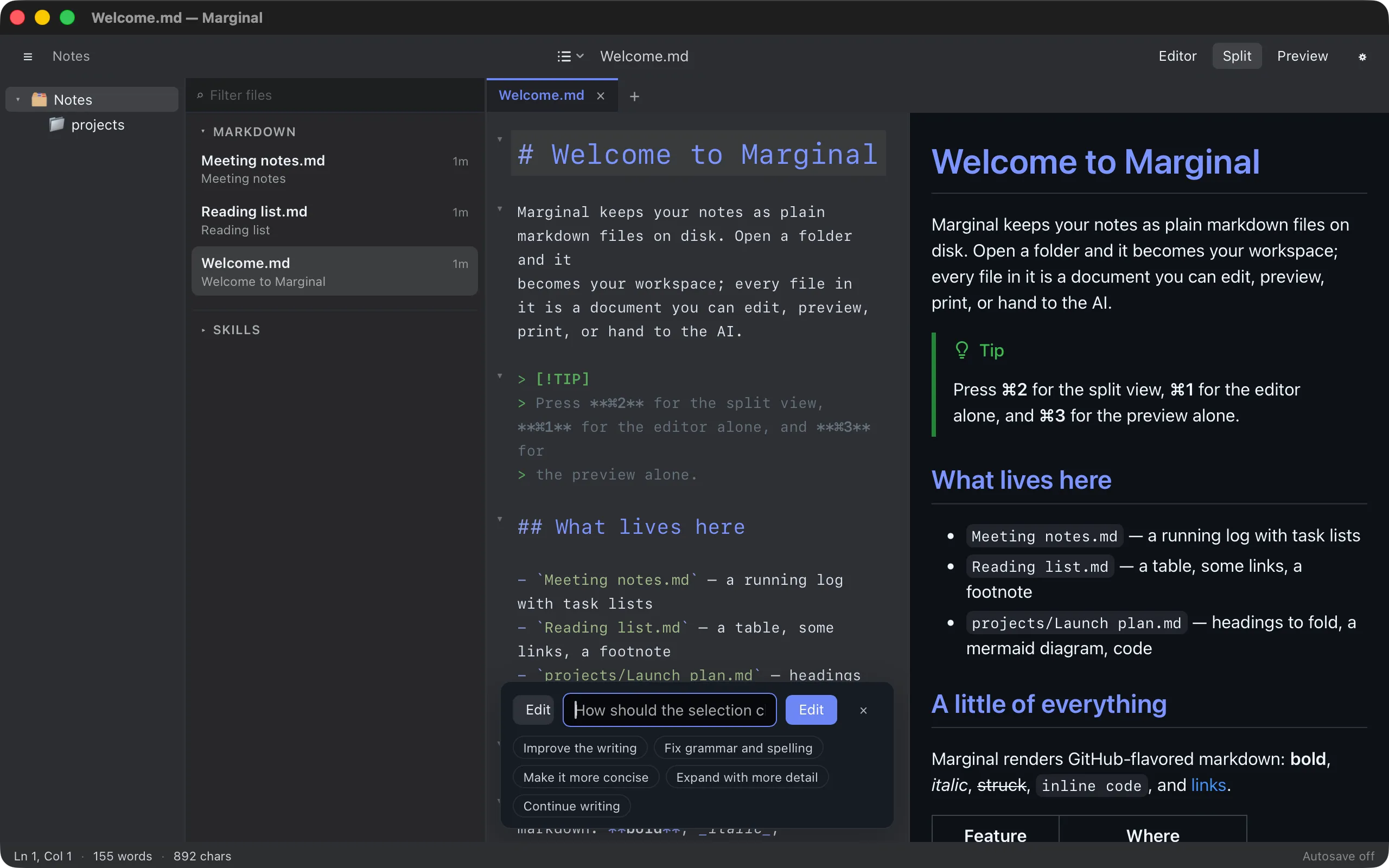
Select some text and press ⌘K (AI ▸ Edit Selection…). Tell the AI what to do with it, and the change streams into the editor as an inline diff for you to accept or reject.
Making an edit
Section titled “Making an edit”- Select the text to change. With nothing selected, Marginal takes the block around the cursor: the paragraph, list, or code block.
- Press ⌘K. The AI bar opens below the selection.
- Type an instruction, or click one of the presets: Improve the writing, Fix grammar and spelling, Make it more concise, Expand with more detail, Continue writing.
- Press Enter. The replacement streams in as a diff: removed text struck through, new text highlighted. Stop (Esc) cancels a request in flight.
- Accept (⌘↩) keeps the change, Reject (Esc) restores the original, Retry asks again.
An accepted edit is one step in the undo history. The AI sees the selection plus about 8,000 characters on either side of it, so it knows the surrounding context without reading the whole file.
In Preview-only view, ⌘K switches to Split first, since the diff lives in the editor. Pressing ⌘K again closes the bar. Switching or closing the tab cancels the request and restores the text.
Slash commands
Section titled “Slash commands”A few commands typed into the bar run locally and are never sent to the
AI. Type / to see them.
| Command | Does |
|---|---|
/login |
Opens the selected provider’s API keys page and Settings ▸ AI |
/fold, /fold 2 … /fold 6, /fold all |
Folds the current section, every section of a level, or everything |
/expand, /expand all |
Expands the current section, or everything |
↑ and ↓ move through the list, Tab completes, Enter runs.
Asking instead of editing
Section titled “Asking instead of editing”The same bar has an Ask mode that answers questions about the text without changing it. See Asking about a selection.