
Finding files
Marginal has two ways to reach a file by name. The filter narrows the file list and stays in place while you work; Go to File is a one-shot jump that closes as soon as you pick something.
The filter
Section titled “The filter”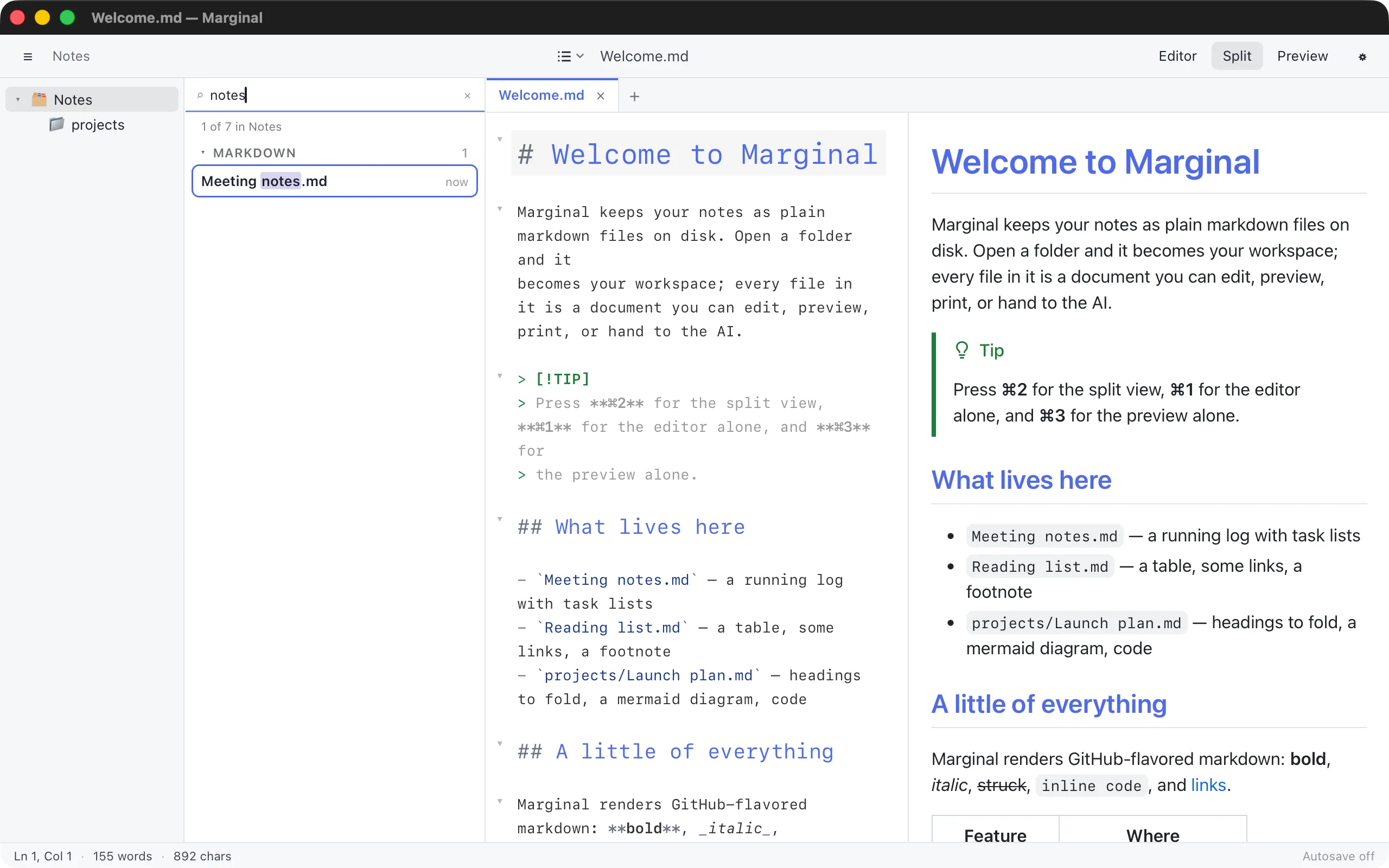
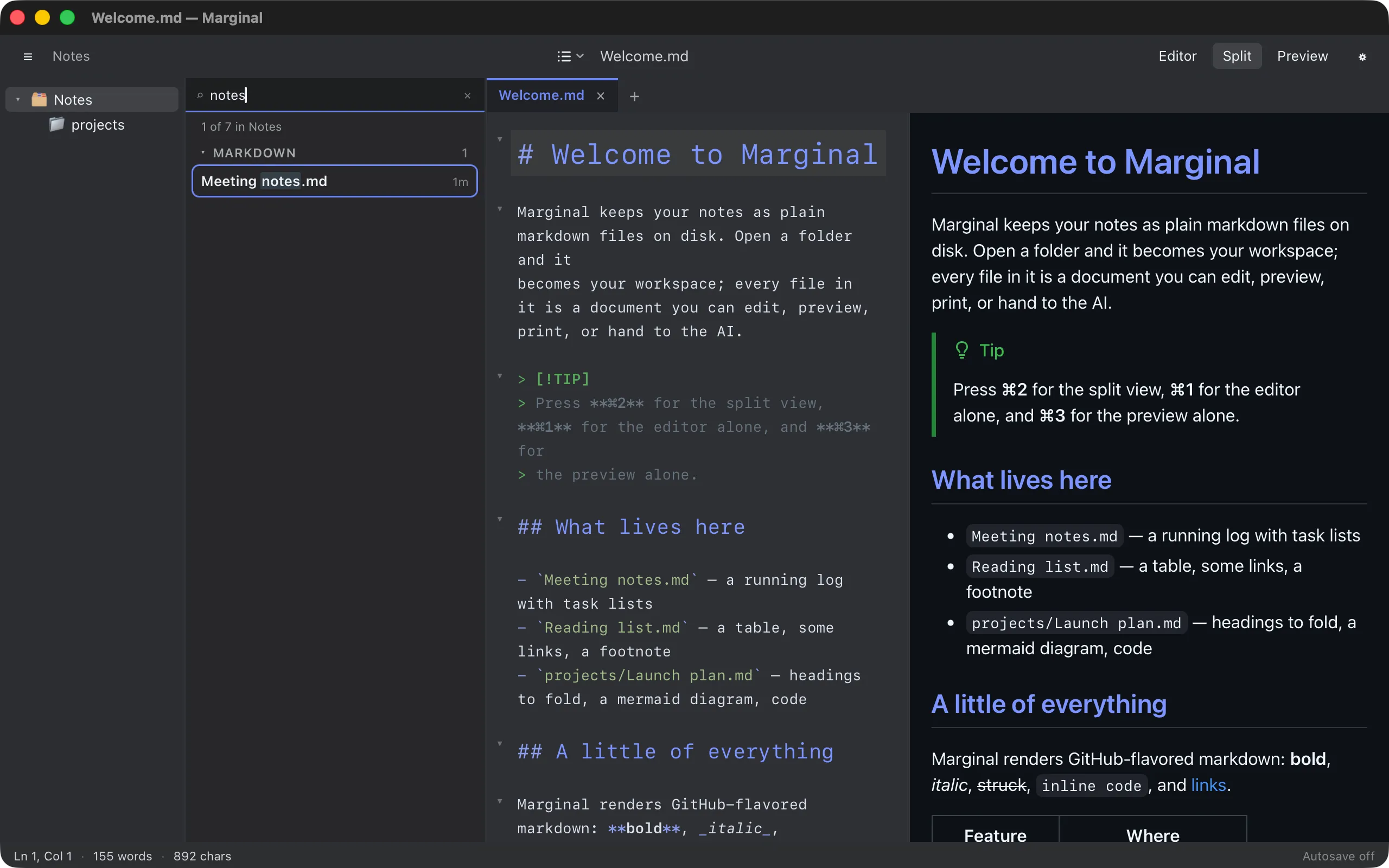
Click the Filter files box at the top of the file list, or press ⌘⇧F (View ▸ Filter Files), and type. The list narrows as you go and the matched letters are highlighted.
How matching works:
- Several words match together, in any order.
plan launchfindsLaunch plan.md. - You never type the extension. Words match the file name with
.mdstripped. - Case is smart: lower-case words ignore case, a capital letter makes the word case-sensitive.
- A word containing
/,\, or.matches the path inside the workspace instead of the file name, sodocs/thfindsdocs/THEMES.md.
Results are ranked: an exact name first, then names starting with the word, names matching its initials, names containing it, and finally names and paths whose letters merely appear in order.
The filter always searches the whole subtree of the selected folder, even when List files in subfolders is off. The count line says how many files matched and where; Search all of … widens the search to the entire workspace. Long results are cut at 200 rows.
Use ↓ and ↑ to move through the results and Enter to open one. Esc clears the filter; a second Esc returns you to the editor.
Go to File
Section titled “Go to File”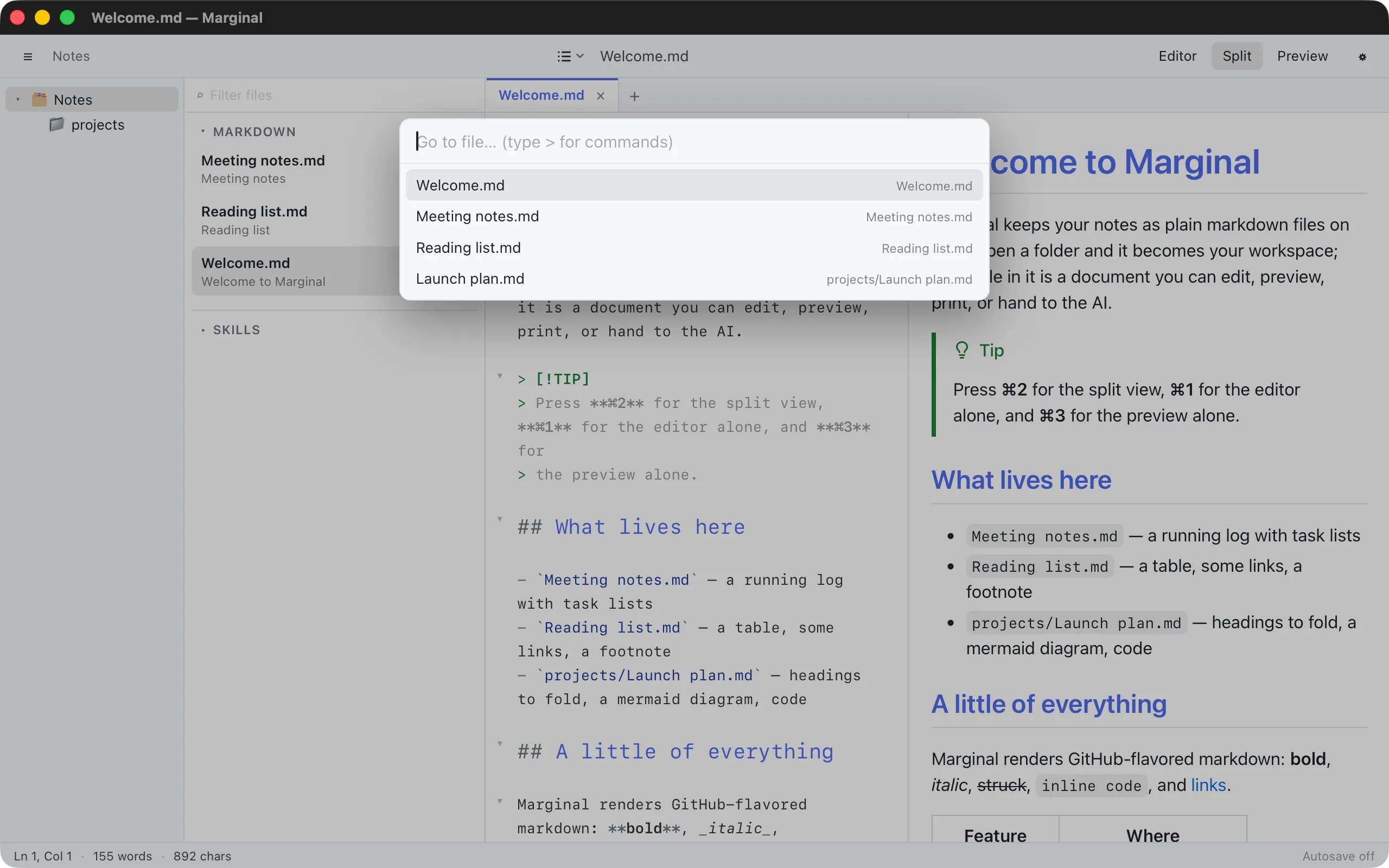
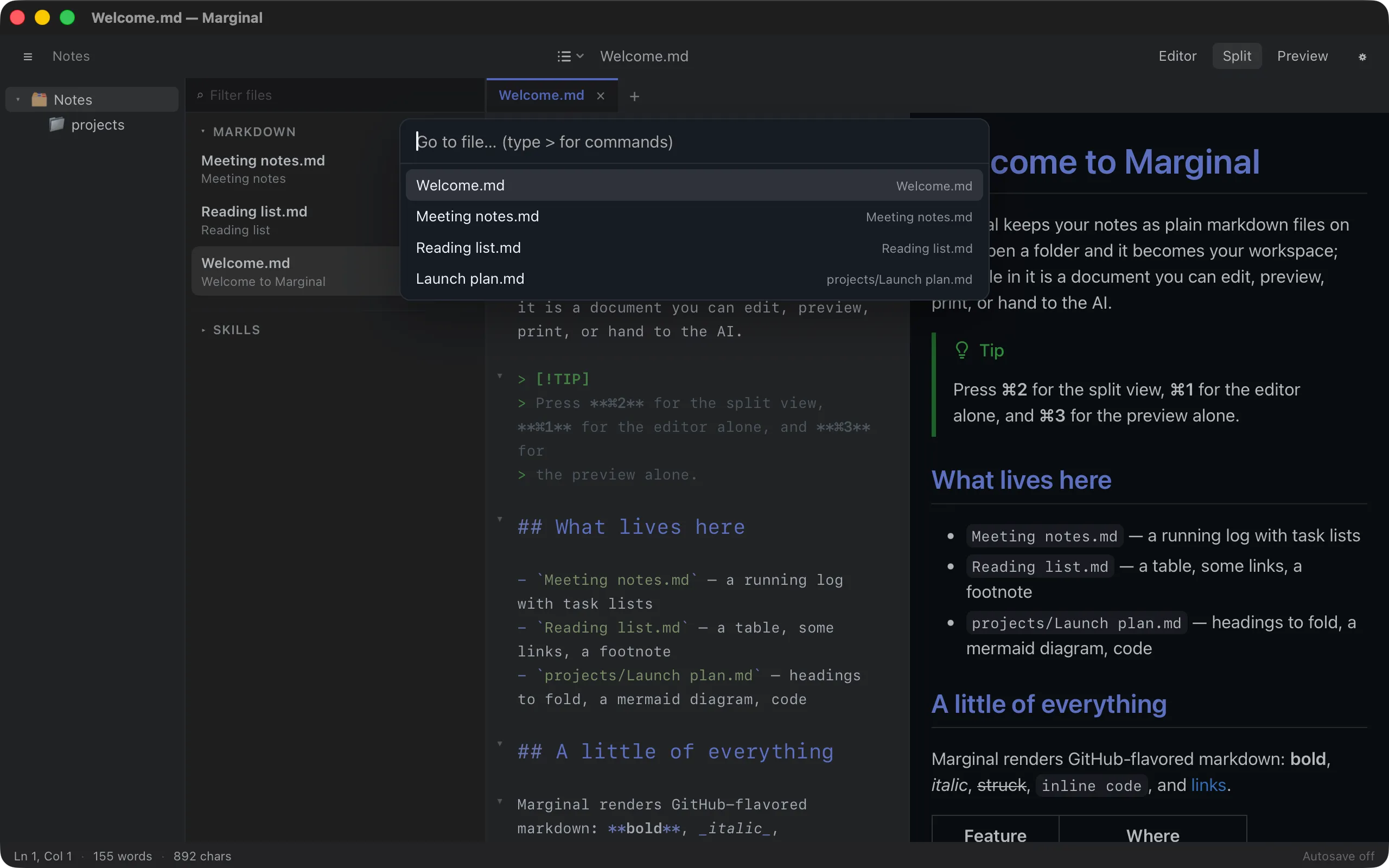
Press ⌘T (View ▸ Go to File…) for a panel over the editor. Empty, it lists your recent files and the most recently modified ones; as you type, it fuzzy-matches the path of every file in the workspace. Enter opens the highlighted file, Esc closes the panel.
The command palette
Section titled “The command palette”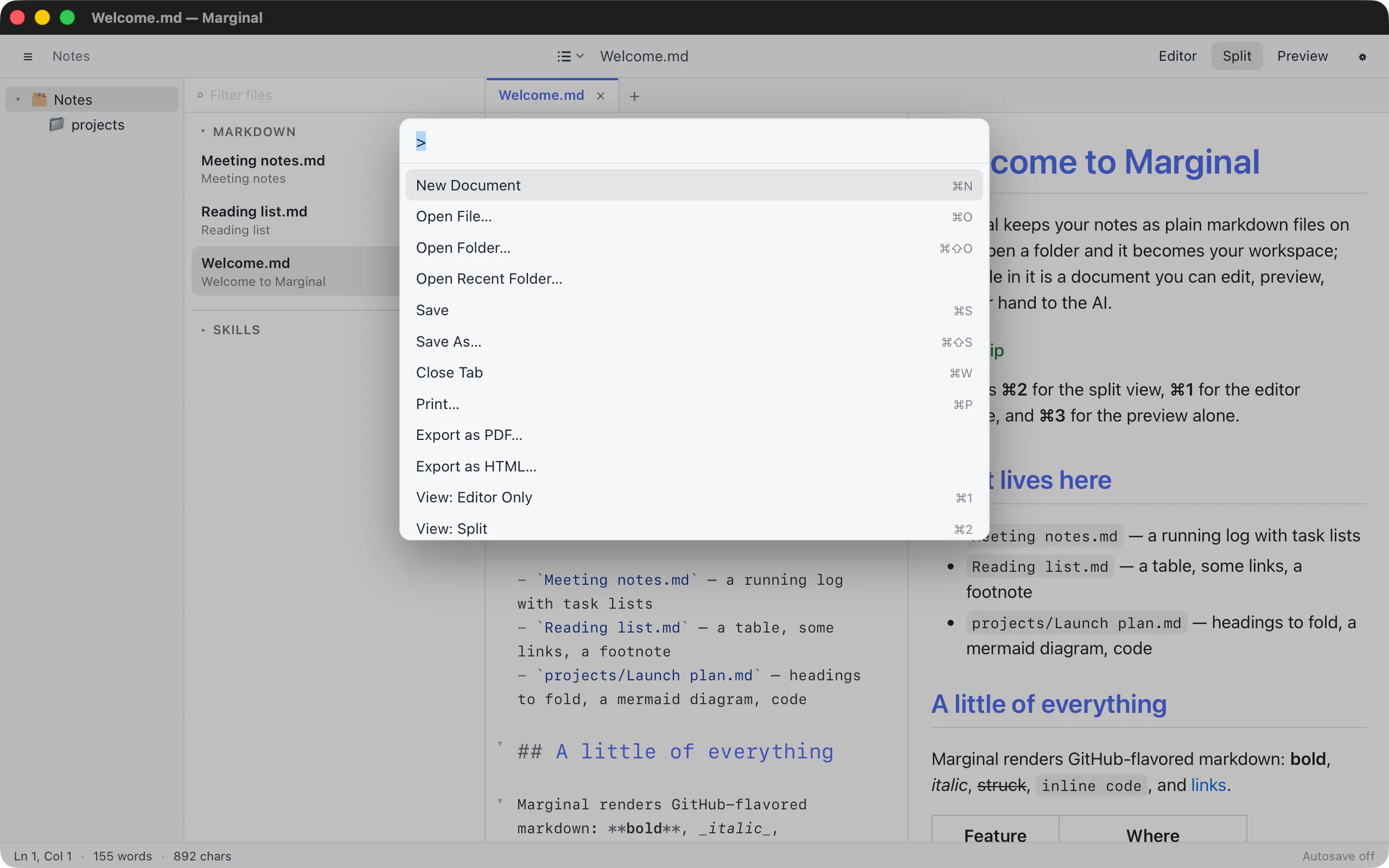
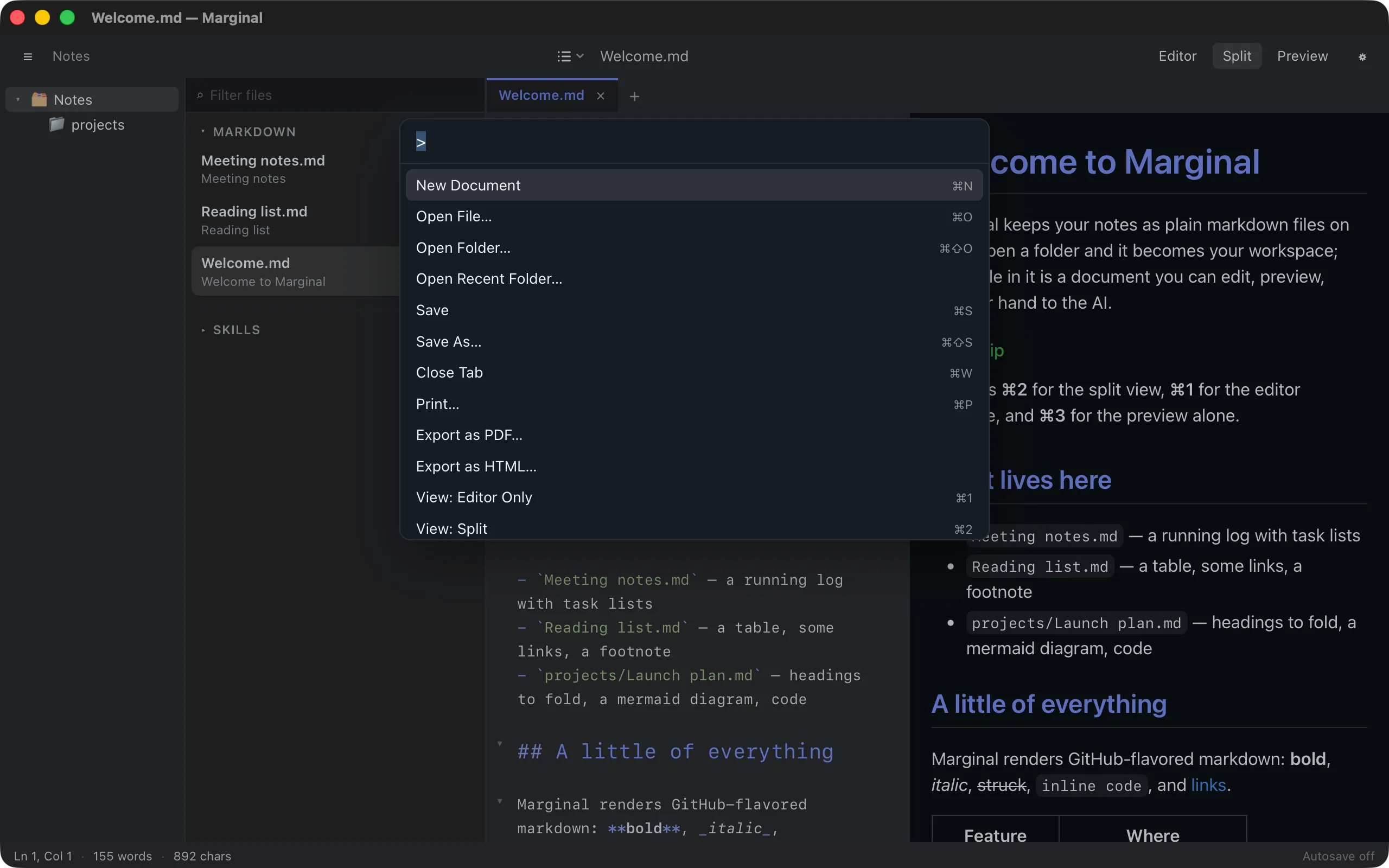
Type > in the Go to File panel, or press ⌘⇧P
(View ▸ Command Palette…), and the panel lists every command in the
app with its shortcut. Commands that have no shortcut, such as the folding
commands and the exports, are quickest to reach this way.