
Live preview
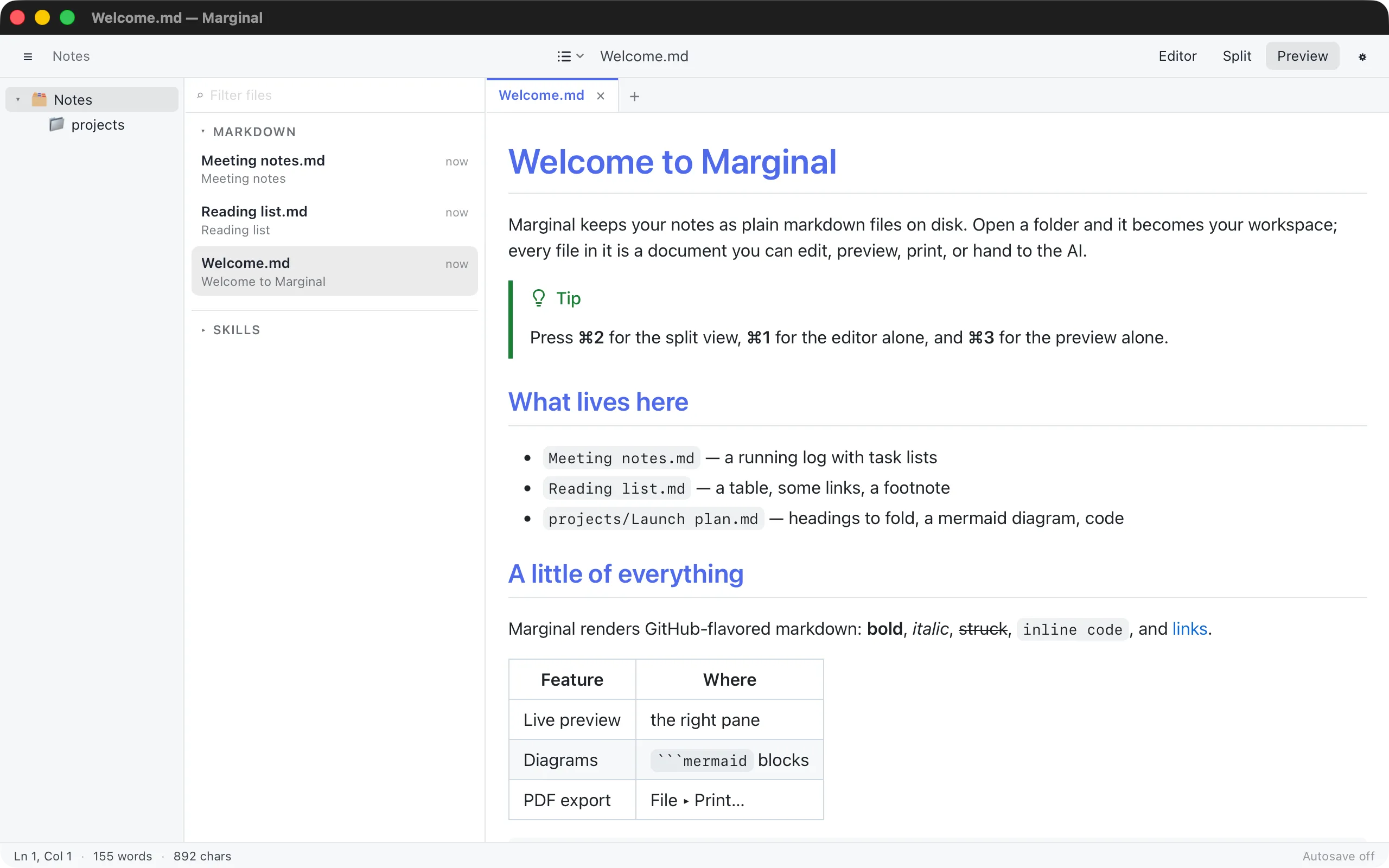
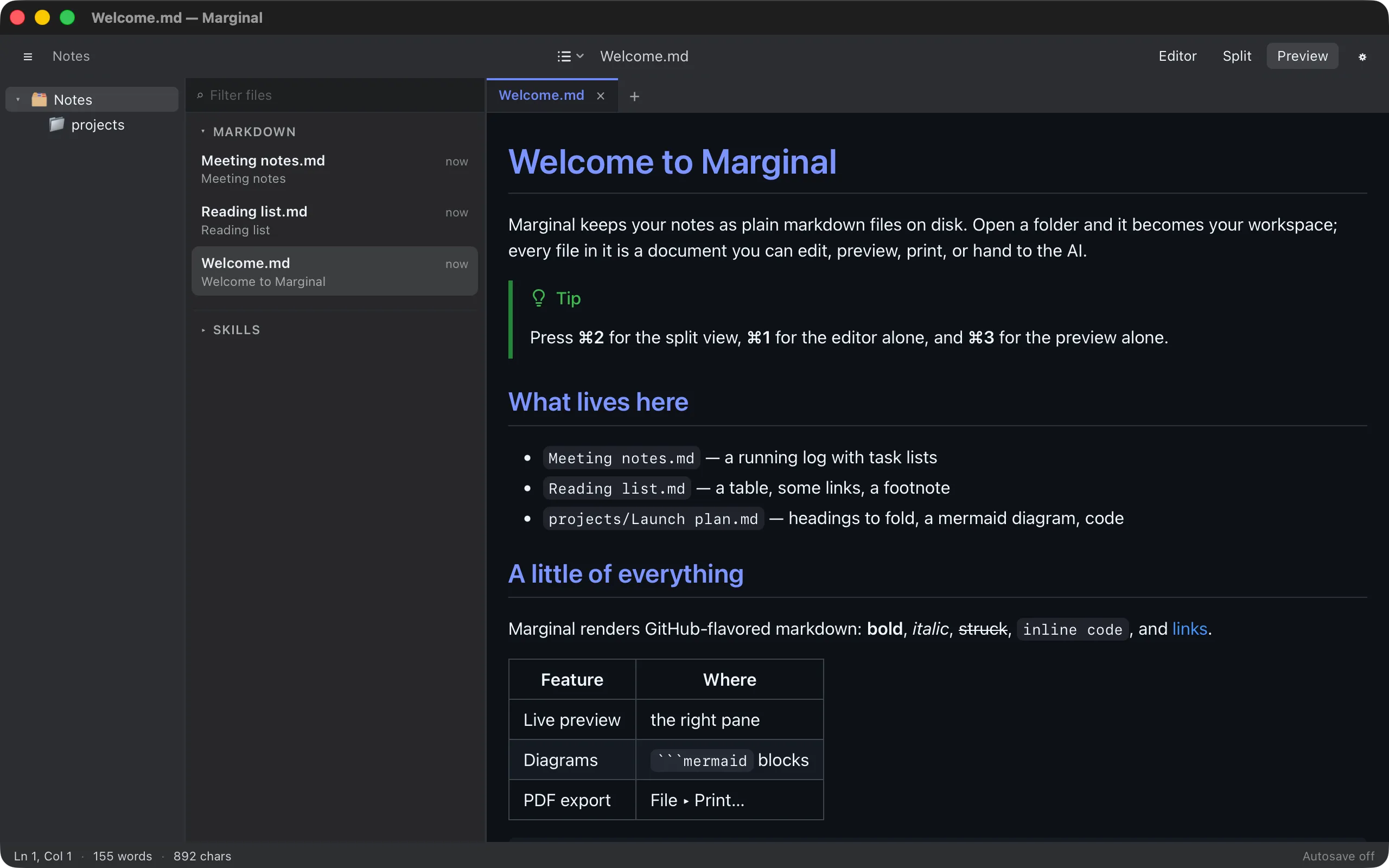
The preview renders the document as you type. The same Rust markdown engine renders the preview, the printed page, the exports, and the context the AI reads, so what you see is what you get everywhere.
View modes
Section titled “View modes”View ▸ Editor Only (⌘1), Split (⌘2), and Preview Only (⌘3), or the control in the toolbar. In split view the two panes scroll together in both directions.
The table-of-contents button in the toolbar lists every heading of the document; pick one to jump there.
What renders
Section titled “What renders”Marginal renders GitHub-flavored markdown:
- Tables, strikethrough, autolinked URLs, and task lists.
- Footnotes.
- GitHub-style alerts: a quote starting with
> [!NOTE],[!TIP],[!IMPORTANT],[!WARNING], or[!CAUTION]becomes a callout. - YAML front matter between
---lines, shown as a small block at the top. - Heading anchors, so
[see above](#some-heading)works.
Raw HTML in the document renders too, after sanitizing: scripts, event
handlers, and javascript: links are stripped.
Fenced code blocks are syntax-highlighted for the language named after the opening fence. Hover a block and a Copy button appears.
Diagrams
Section titled “Diagrams”A fenced block whose language is mermaid renders as a diagram:
```mermaidgraph LR A[Draft] --> B[Review] --> C[Publish]```Diagrams follow the current theme and are cached, so typing elsewhere in the document does not redraw them. A diagram with a syntax error shows an error box with its source instead of breaking the rest of the preview.
Web and mail links open in your browser. Links to headings scroll the
preview. A relative link to another .md file opens that file in a new
tab.
Images
Section titled “Images”Images with a relative or absolute path on your disk are shown. Images from the web are not loaded, by design: the preview never makes network requests.
Layout
Section titled “Layout”Settings ▸ Preview sets the preview’s font size, its column width, and its margin. Force light preview keeps the preview light while the rest of the app is dark, which is handy for judging how a printed page will look.