
Workspaces and the sidebar
A workspace is a folder. Open one with File ▸ Open Folder… (⌘⇧O), drop a folder on the window, or pick it from File ▸ Open Recent Folder or the Welcome screen. Marginal remembers your last workspace and reopens it at launch, and keeps the ten most recent ones.
Nothing is imported or indexed. The files stay where they are, and any other tool can edit them at the same time.
The sidebar
Section titled “The sidebar”The sidebar is the folder tree of the workspace. Only folders appear there; files are in the list next to it. Select a folder to scope the file list to it, or the workspace root to lift the scope.
View ▸ Toggle Sidebar (⌘⇧E) cycles through three states: folders and files, files only, and hidden. Drag the edges of the sidebar, the file list, and the editor to resize them; Marginal remembers the widths per machine.
The file list
Section titled “The file list”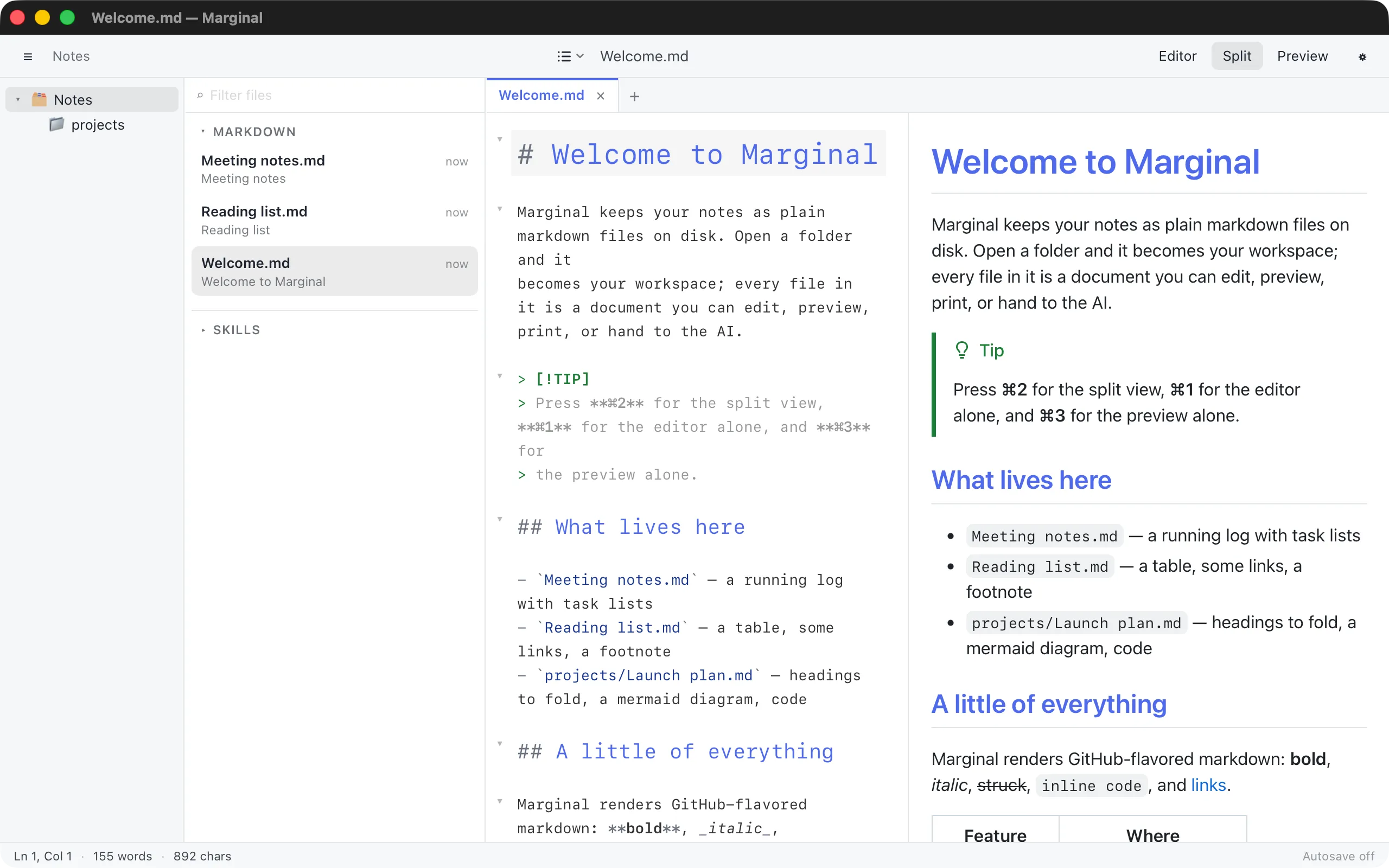
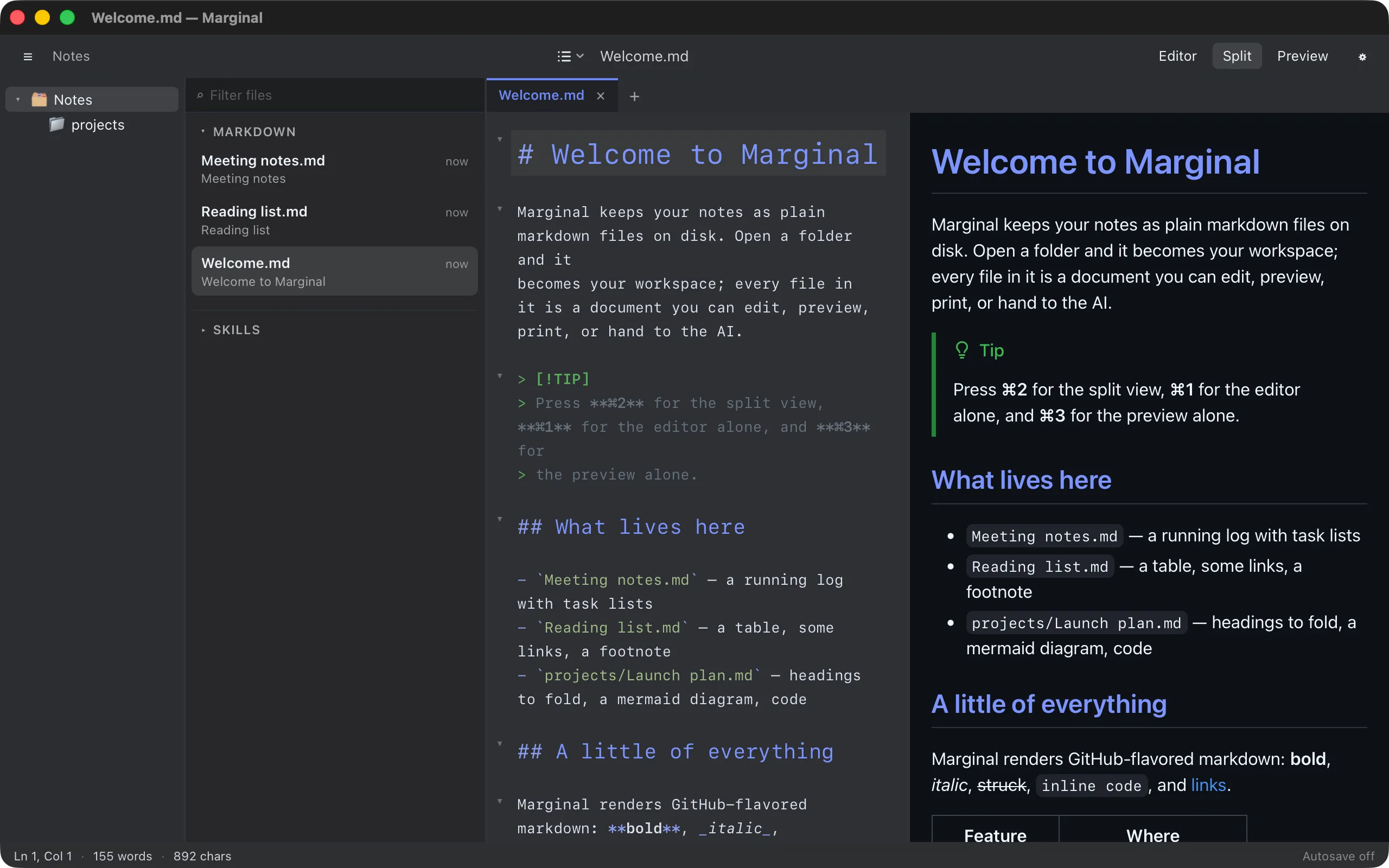
Each row shows the file name, how long ago it changed, and the first meaningful line of the file, with front matter and heading marks stripped. Click a row to open the file in a tab.
Marginal lists files ending in .md, .markdown, or .mdown. It skips
hidden folders and generated ones such as node_modules and target.
Two settings under Settings ▸ General ▸ Files shape the list:
- List files in subfolders includes the files of every folder below the selected one, not just its own.
- Sort files by orders the list by name or by last modification.
To find a file by name, type in the Filter files box at the top of the list. See Finding files.
Coding agent sections
Section titled “Coding agent sections”Below MARKDOWN, the files your coding agent reads get collapsible sections of their own under the agent’s name: the instruction file (CLAUDE.md, AGENTS.md, or QWEN.md, depending on the agent), RULES, SKILLS, AGENTS, and COMMANDS. Each entry is badged project, local, or user to say where it comes from, and shows the file’s description as its second line. The sections start collapsed; Settings ▸ AI ▸ Unfold agent sections opens them by default.
Which agent, and therefore which folders, is a setting. See Your coding agent for the choice and one page per agent for the exact paths.
Closing the workspace
Section titled “Closing the workspace”File ▸ Close Folder (⌘⇧W, or Close Folder in the command palette) closes the workspace and the tabs of the files inside it, then shows the Welcome screen. A file with unsaved changes asks first: Save (Save All for several), Don’t Save, or Cancel, which keeps everything as it was. Files opened from outside the folder and untitled documents are not the folder’s, so they stay open, and the editor stays with them.
The folder is not reopened at the next launch, but it stays under File ▸ Open Recent Folder and on the Welcome screen.
Drag and drop
Section titled “Drag and drop”Drop a markdown file on the window to open it in a tab, or drop a folder to
make it the workspace. Dropping an image is different: it is copied into an
assets folder next to the document and linked at the drop point. See
Images.
Changes made outside Marginal
Section titled “Changes made outside Marginal”Marginal watches the workspace. New, renamed, and deleted files show up in the list within a second. If the file you are editing changes on disk, Marginal asks whether to Keep Editing or Reload From Disk; if it is deleted, the status bar says so and saving brings it back.