
The editor
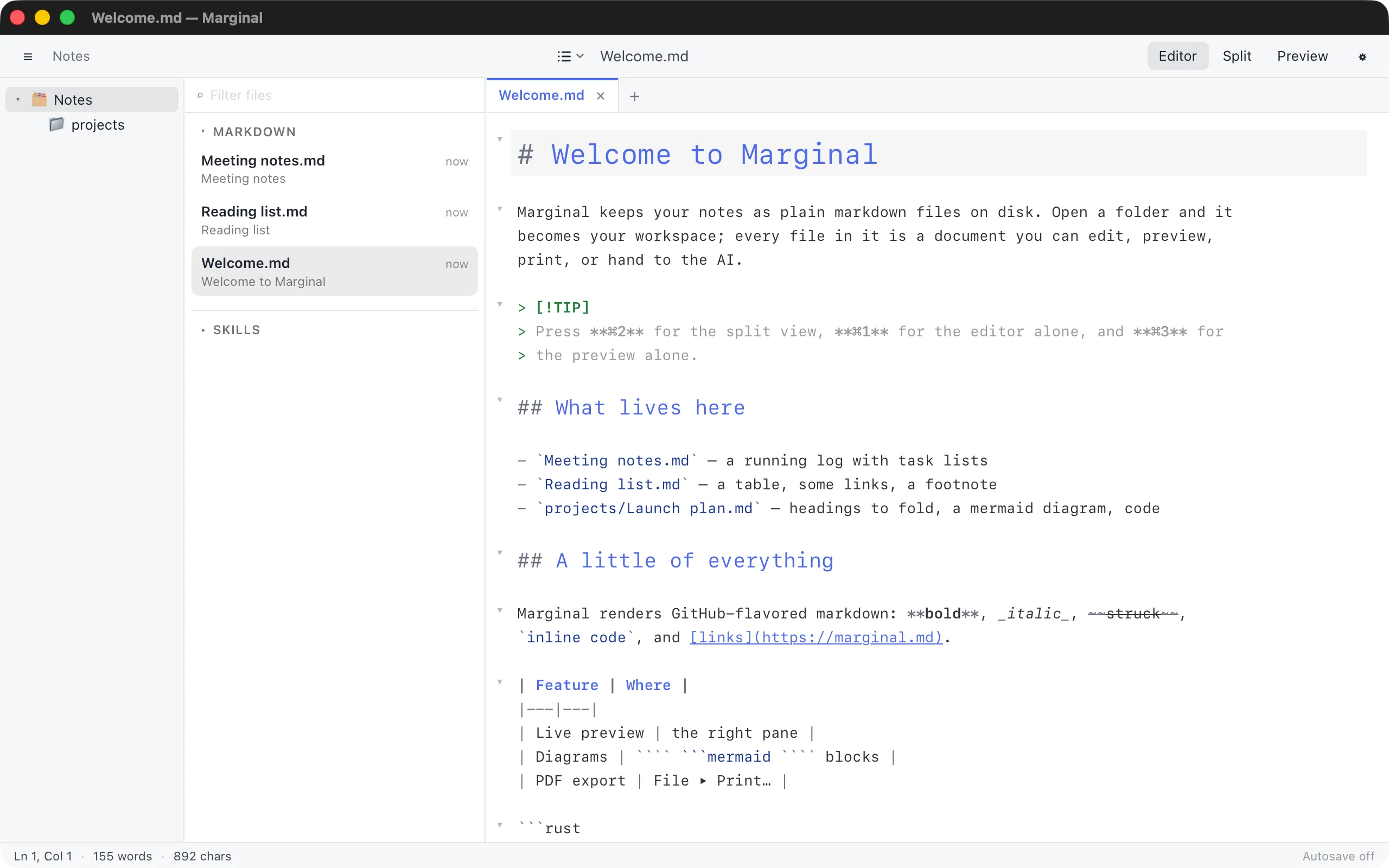
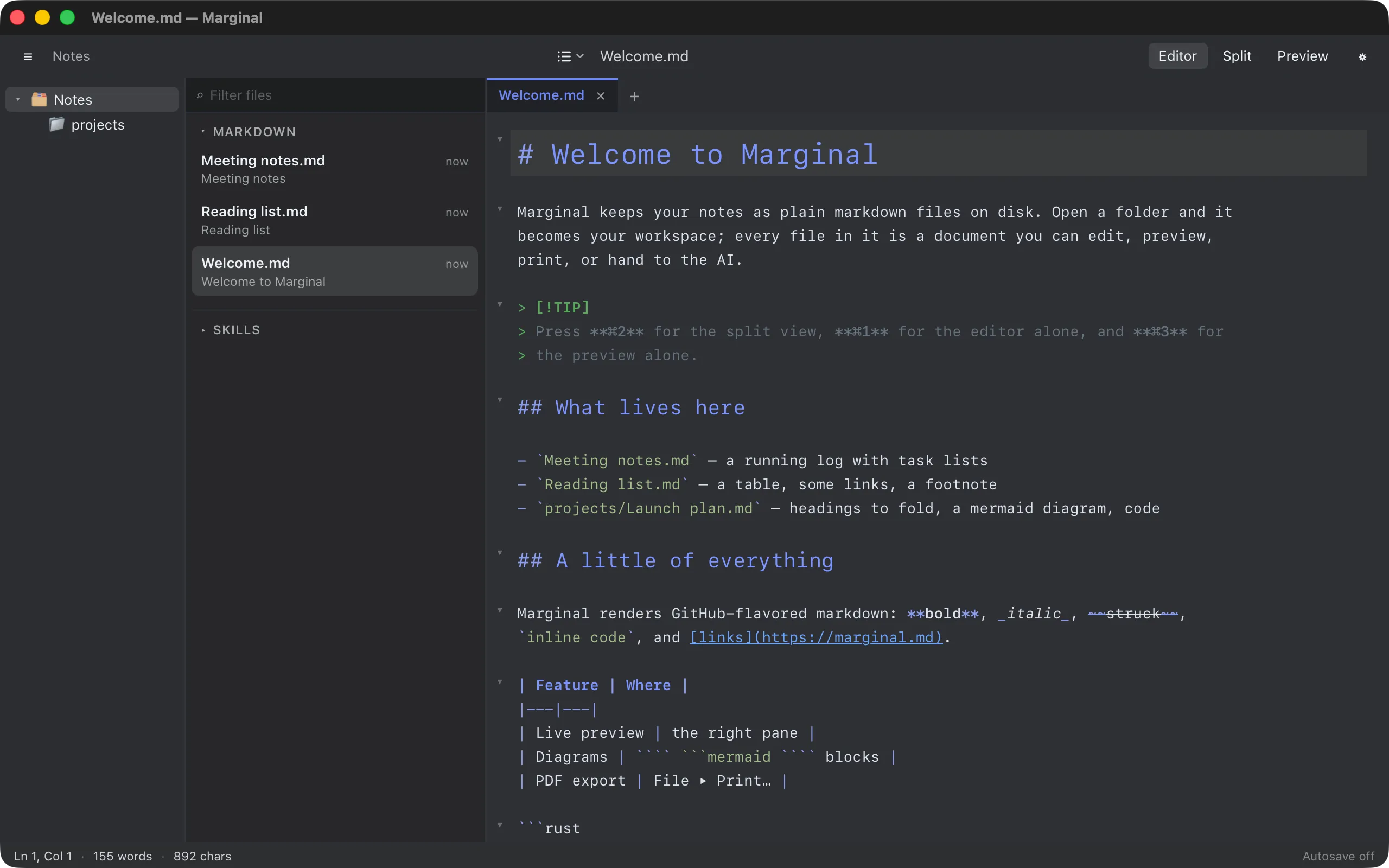
The editor is a plain-text markdown editor. It highlights markdown syntax, wraps long lines, and marks the current line. What you type is what ends up in the file, byte for byte.
Folding
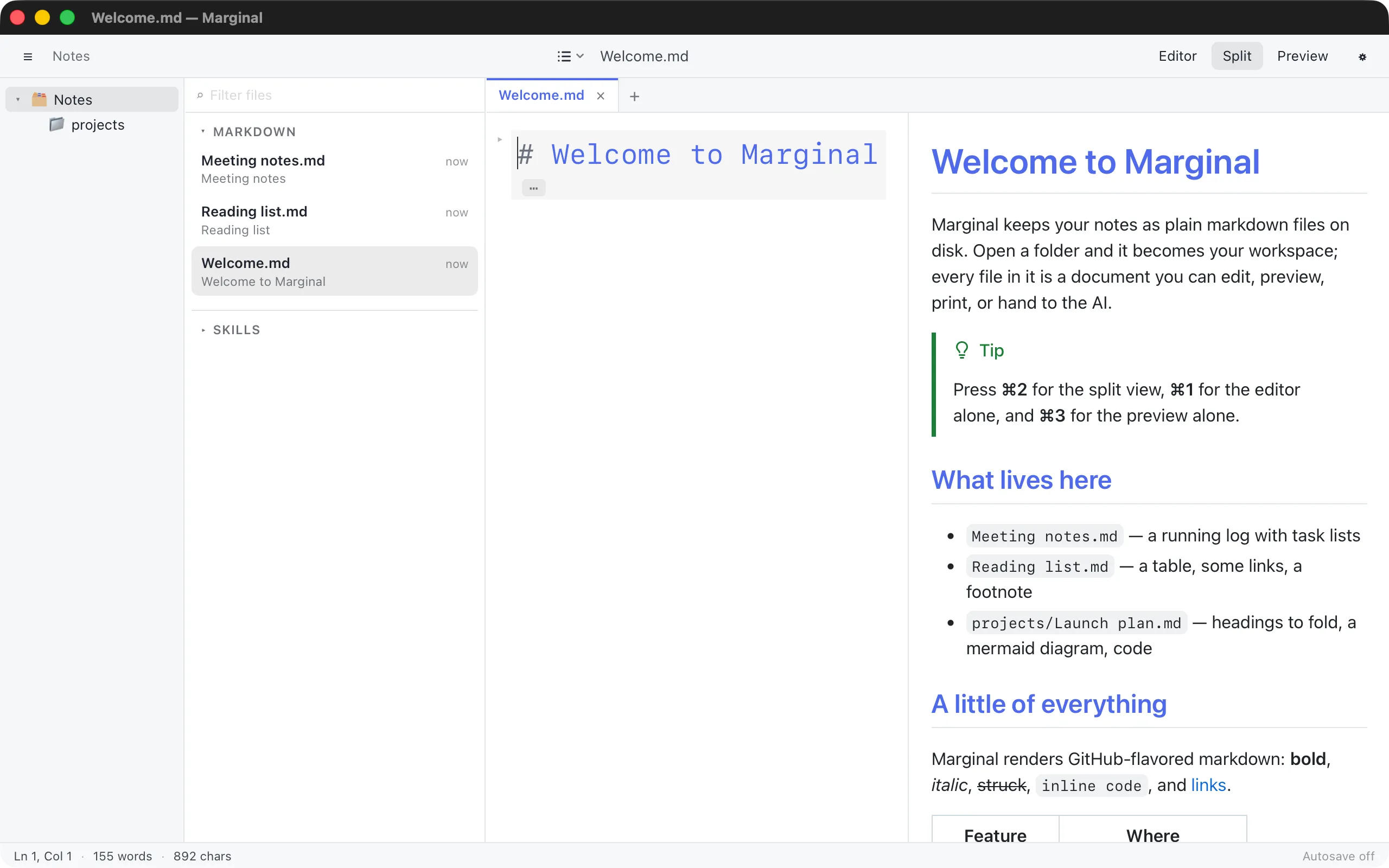
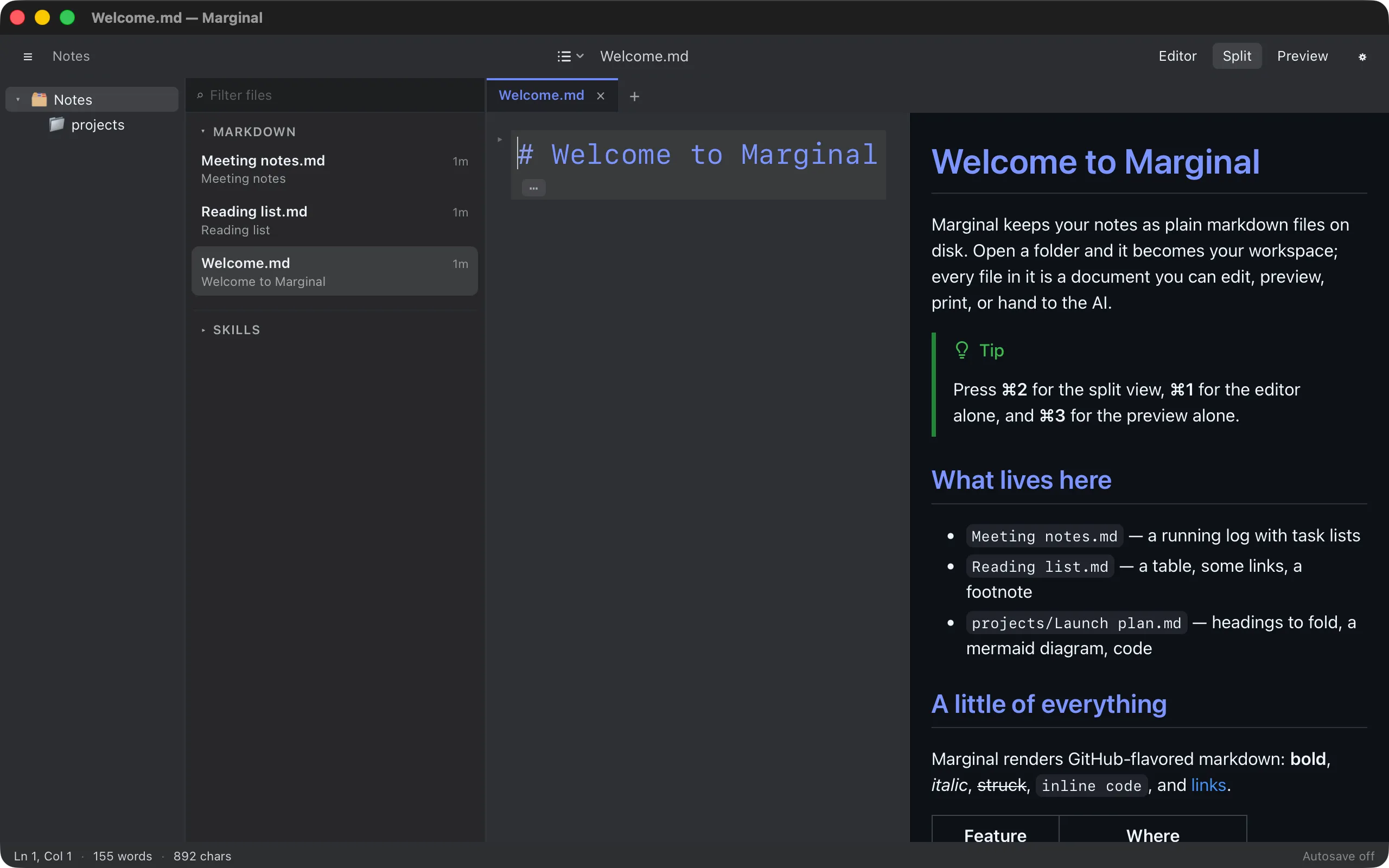
Section titled “Folding”Every heading can fold the section below it, up to the next heading of the
same or a higher level. Click the chevron in the gutter next to a heading,
or use the commands in the View menu and the command palette:
Fold All Sections, Fold Level 2, Fold Level 3, Fold Level 4,
and Unfold All Sections. A folded section shows as ⋯.
Only #-style headings fold. Headings underlined with === or --- do
not.
The /fold and /expand commands in the AI bar
fold and expand from the keyboard: /fold folds the current section,
/fold 2 every level-2 section, /fold all everything; /expand and
/expand all undo it.
⌘F opens the search panel with find and replace. ⌘G jumps to the next match. The panel’s text follows the interface font size in Settings ▸ General ▸ Font.
In the Emacs scheme, C-s and C-r open the panel,
the first match after or before the cursor is selected as you type, and,
once you are in the panel, the same keys step to the next and previous
match; C-g closes it with the match still selected, as Escape
does. In the Vim
scheme, / and ? search forward and backward, n and N step through
the matches, and Escape cancels the prompt. The
Keybindings page has both schemes in full.
Task lists
Section titled “Task lists”A task list item looks like - [ ] something in the editor. You can tick
it from the preview: clicking the checkbox there flips [ ] to [x] in
the source, and that is a normal undoable edit.
Images
Section titled “Images”Drop an image file on the editor or the preview, or paste one from the
clipboard, and Marginal copies it into an assets folder next to the
document and inserts a link such as  at that
spot. A drop on the preview lands at the matching line of the source.
The document needs a file for this to work; with a new, unsaved document the status bar says Save the document first to attach images.
⌘= and ⌘- zoom the text of both the editor and the preview, from 50 % to 300 %; ⌘0 goes back to 100 %. A pinch on the trackpad or Ctrl plus the scroll wheel does the same. The zoom is remembered, applies to the text only, and does not scale mermaid diagrams.
The font sizes themselves are in Settings ▸ Editor and Settings ▸ Preview.
Line numbers and git changes
Section titled “Line numbers and git changes”Two gutters are off by default and live in Settings ▸ Editor ▸ Gutter:
- Line numbers, to the left of the fold chevrons.
- Git changes, which marks lines that differ from the committed file: green for added, blue for changed, red where lines were removed. It can compare against the last commit or the staging index, and refreshes when you open, save, switch tabs, or come back to the window, never while you type. Files outside a repository show nothing.
The editor follows the keymap scheme in Settings ▸ Editor ▸ Keybindings: Default, Emacs, or Vim. You can also bind your own shortcuts to editor and application commands. Both are described in Keybindings.