
The terminal panel
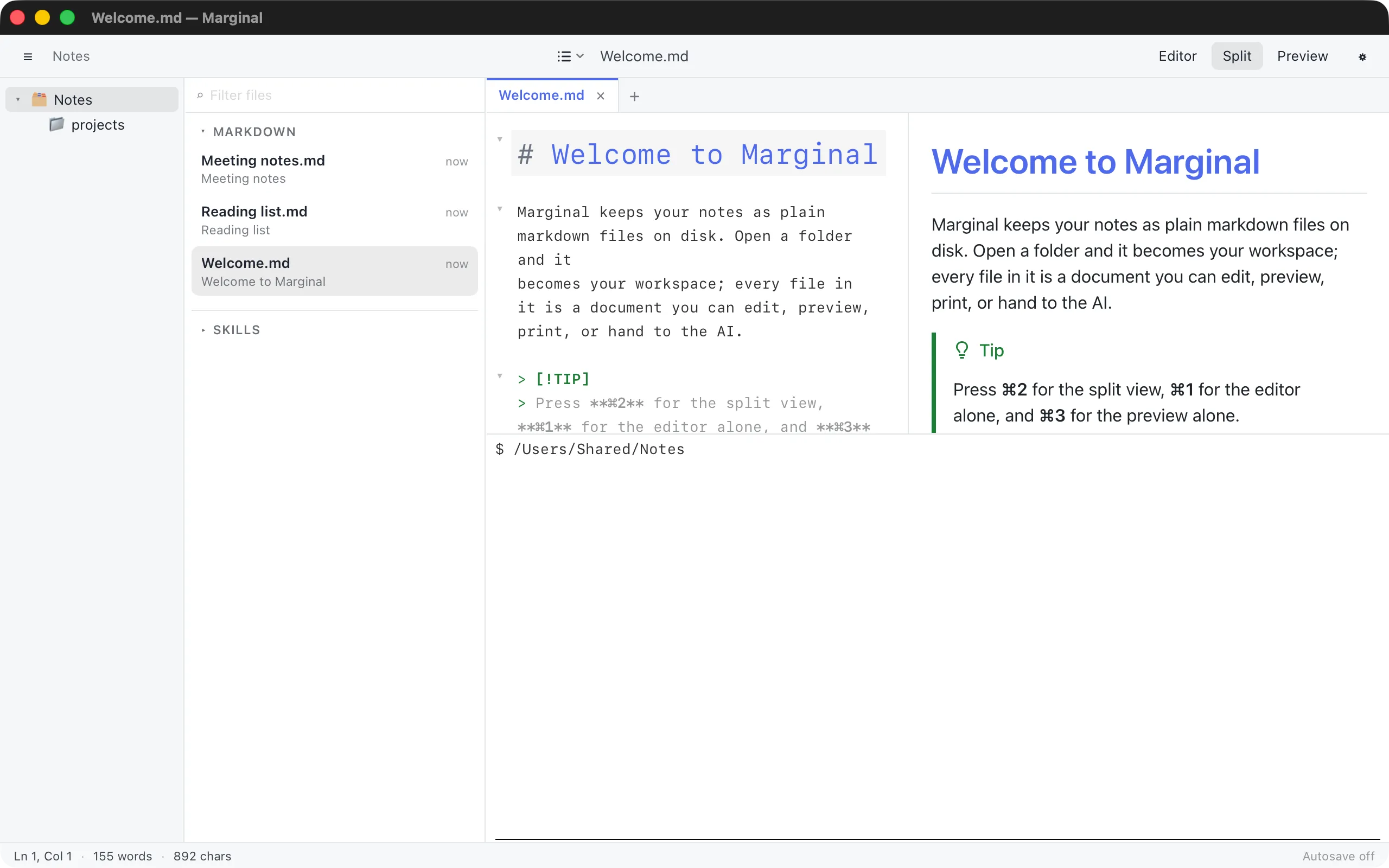
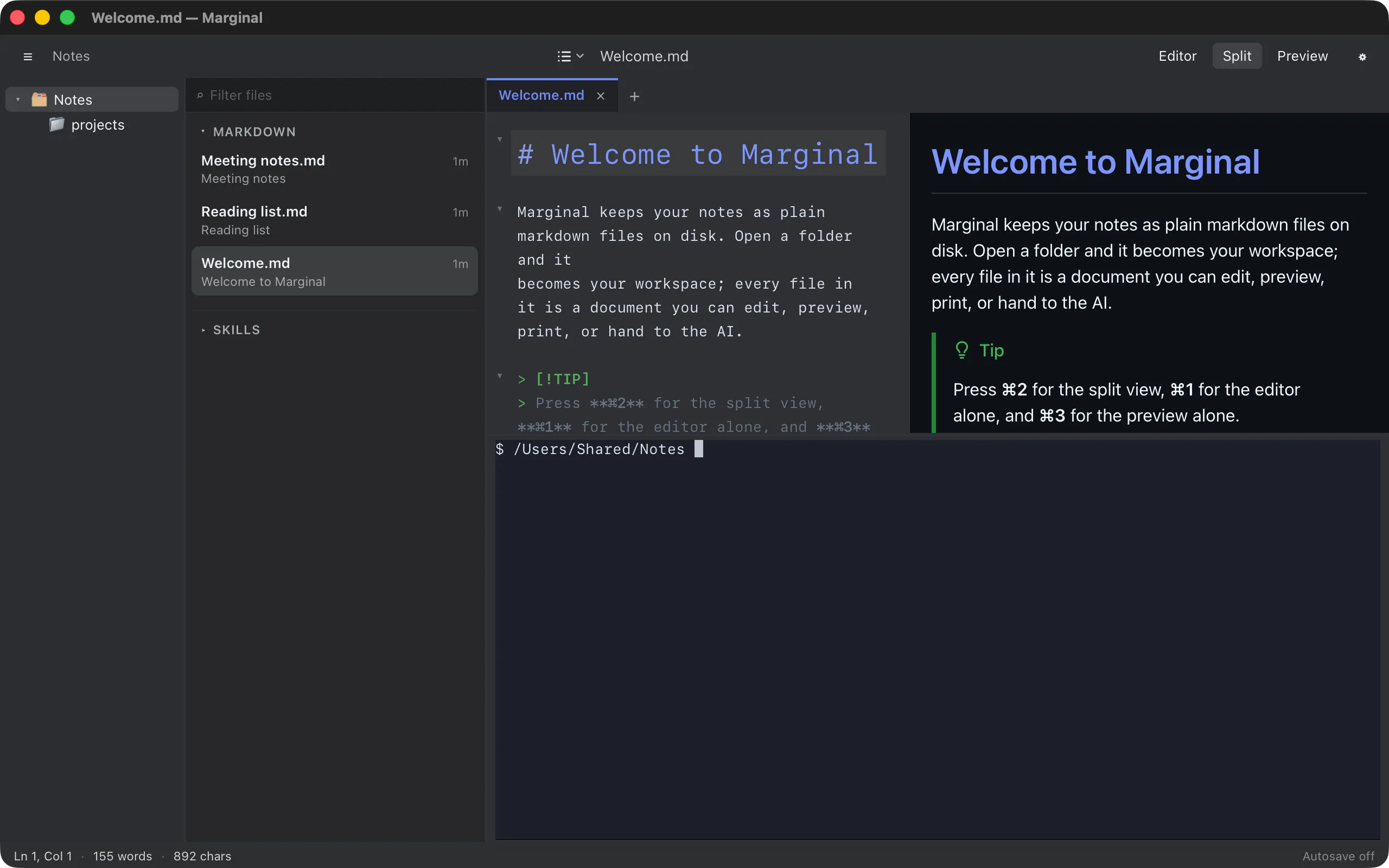
View ▸ Terminal (⌘J) opens a shell in a panel below the editor and preview, starting in the workspace folder.
Using it
Section titled “Using it”The panel runs your usual shell: whatever $SHELL is on macOS and Linux
(as a login shell on macOS), and PowerShell on Windows, falling back to
Windows PowerShell or the command prompt. It starts in the workspace root
or, with no workspace, in the folder of the current document.
Drag the top edge to change the panel’s height; Marginal remembers it.
Hiding and closing
Section titled “Hiding and closing”⌘J hides the panel but leaves the shell running, so whatever
you started keeps going and is still there when you show the panel again.
Typing exit ends the session.
There is one terminal, without tabs or splits, and it is not available in the reading view. If the shell cannot be started, the status bar says Terminal failed with the reason.