
A tour of the window
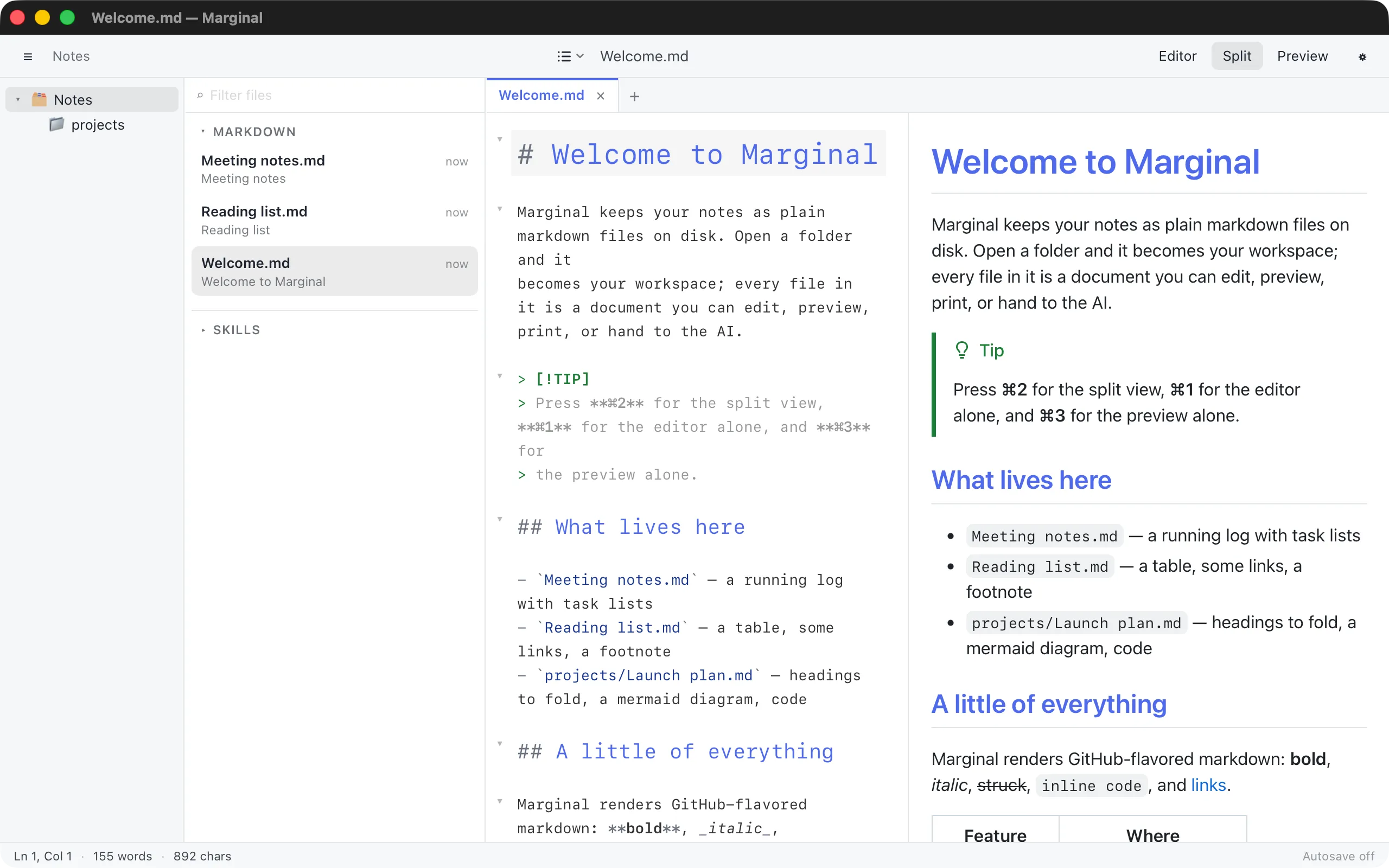
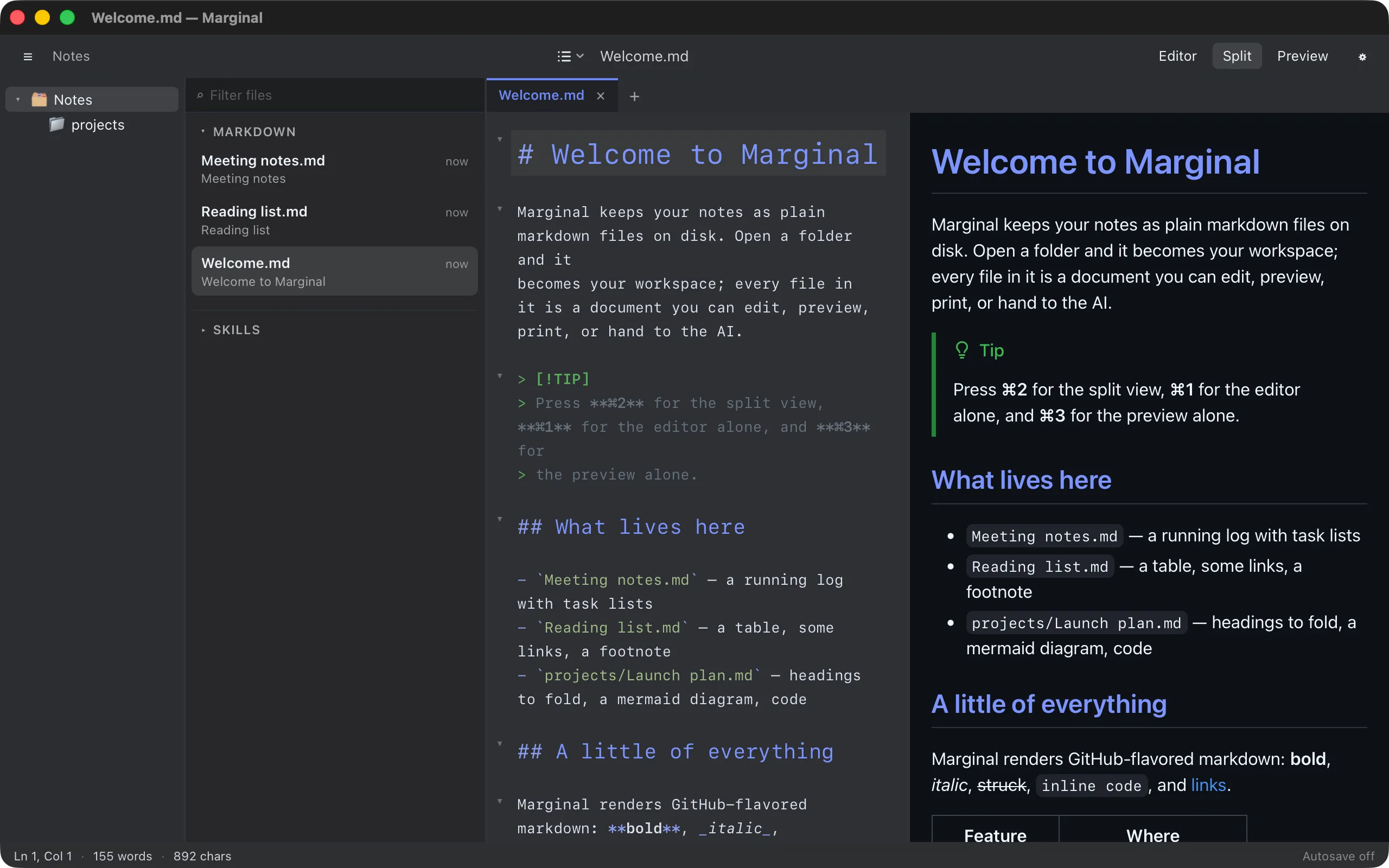
The toolbar
Section titled “The toolbar”From left to right:
- ☰ shows and hides the sidebar (⌘⇧E). Each press cycles through folders and files, files only, and hidden.
- The workspace name. Hover it for the full path.
- The table of contents button lists every heading in the current document; pick one to jump to it.
- The file name, with a dot when the document has unsaved changes.
- Editor / Split / Preview switch the view mode (⌘1, ⌘2, ⌘3).
- ⚙︎ opens Settings (⌘,).
The sidebar
Section titled “The sidebar”The sidebar shows the folders of your workspace. Select one to list only its files; select the workspace root to see everything again. Drag its right edge to resize it.
The file list
Section titled “The file list”The file list shows the markdown files of the selected folder, with a relative time and the first line of each file. The Filter files box at the top narrows the list as you type; see Finding files.
Below the markdown files, your coding agent’s files (its instruction file
such as CLAUDE.md or AGENTS.md, rules, skills, sub-agents, commands) get
sections of their own, under the agent’s name. See
Your coding agent.
Every open document is a tab. Drag tabs to reorder them, close one with its × (⌘W) or a middle click, and press + for a new document (⌘N). See Tabs, saving, and autosave.
Editor and preview
Section titled “Editor and preview”The editor on the left is where you write; the preview on the right renders what you wrote and stays in step as you scroll either pane. Each has its own page: The editor and Live preview.
The status bar
Section titled “The status bar”The status bar shows the cursor position and the word and character counts. Other things appear there when they matter: the current keymap or Vim mode, a pulsing AI indicator during a request, an Update to … chip when a new version is available, a licence chip when you are in a trial or read-only, and whether autosave is on.
The Welcome screen
Section titled “The Welcome screen”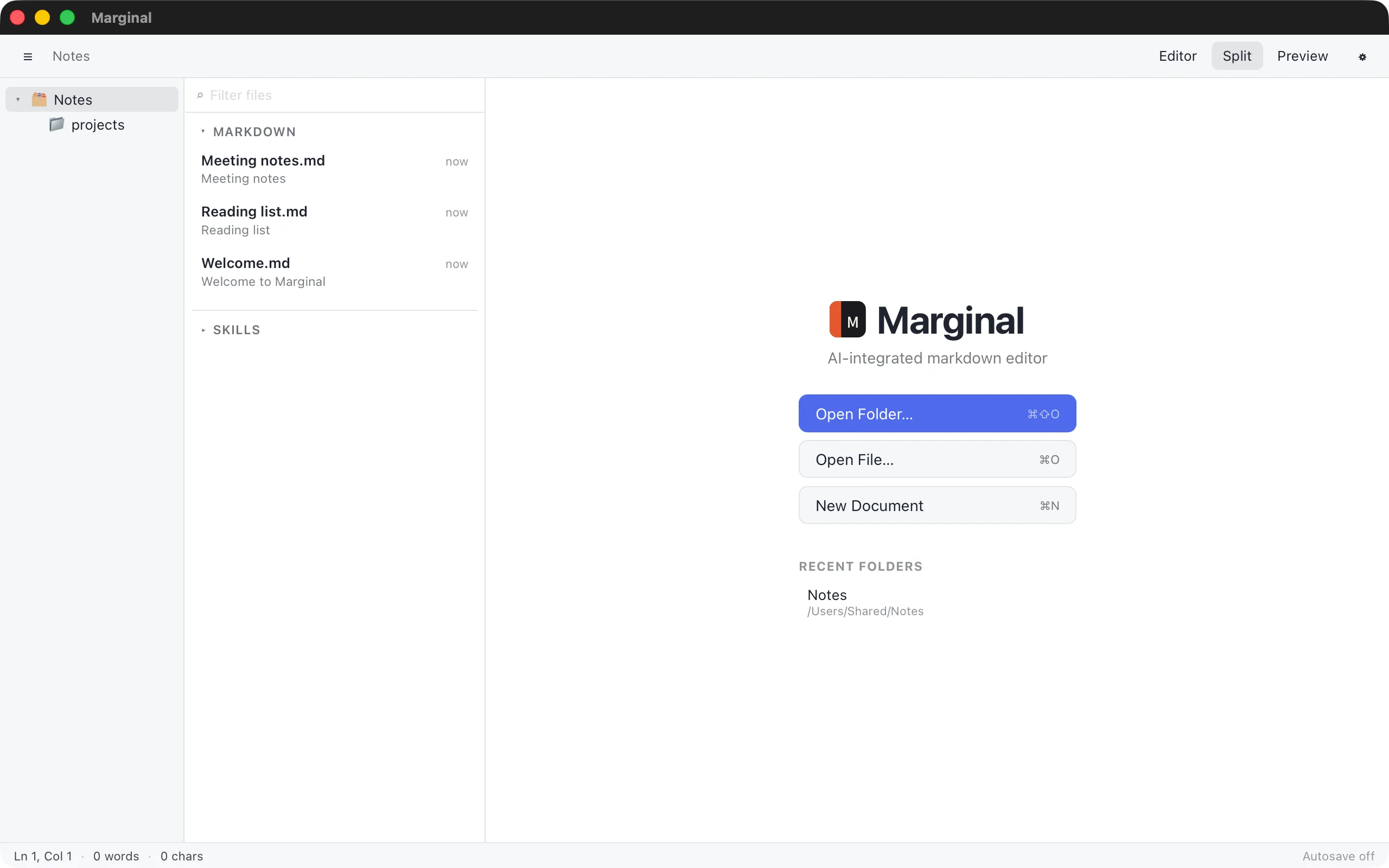
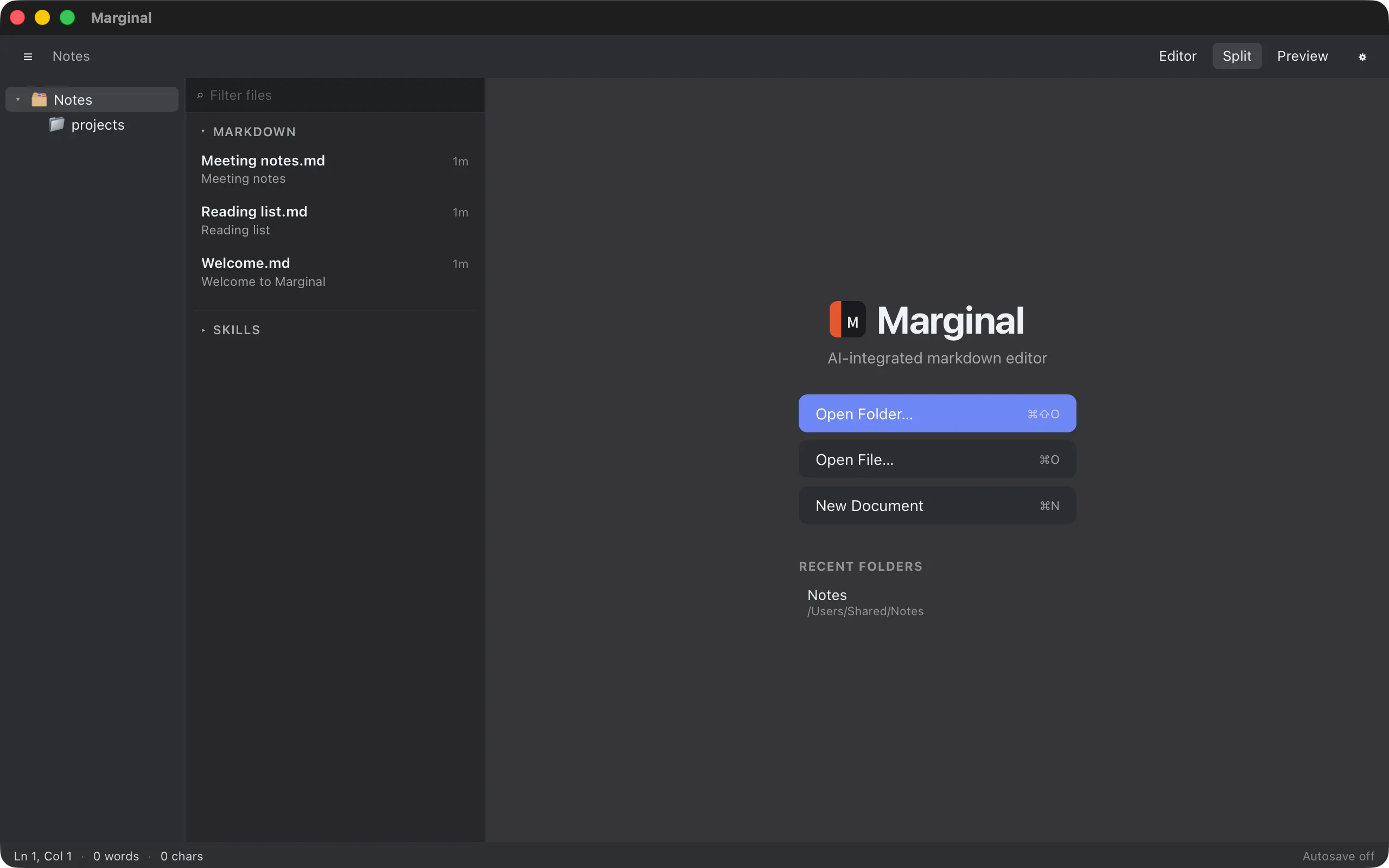
With no documents open you see the Welcome screen: open a folder, open a file, start a new document, or return to a recent folder.