
Marginal

A markdown editor built for coding agents.

Marginal finds the CLAUDE.md, skills, rules, sub-agents, and commands in effect for your project and lists them beside your notes. Native on macOS, Windows, and Linux, with your files kept as plain markdown on disk.

Version 1.0  ·  macOS, Windows, and Linux  —  14-day free trial, no card

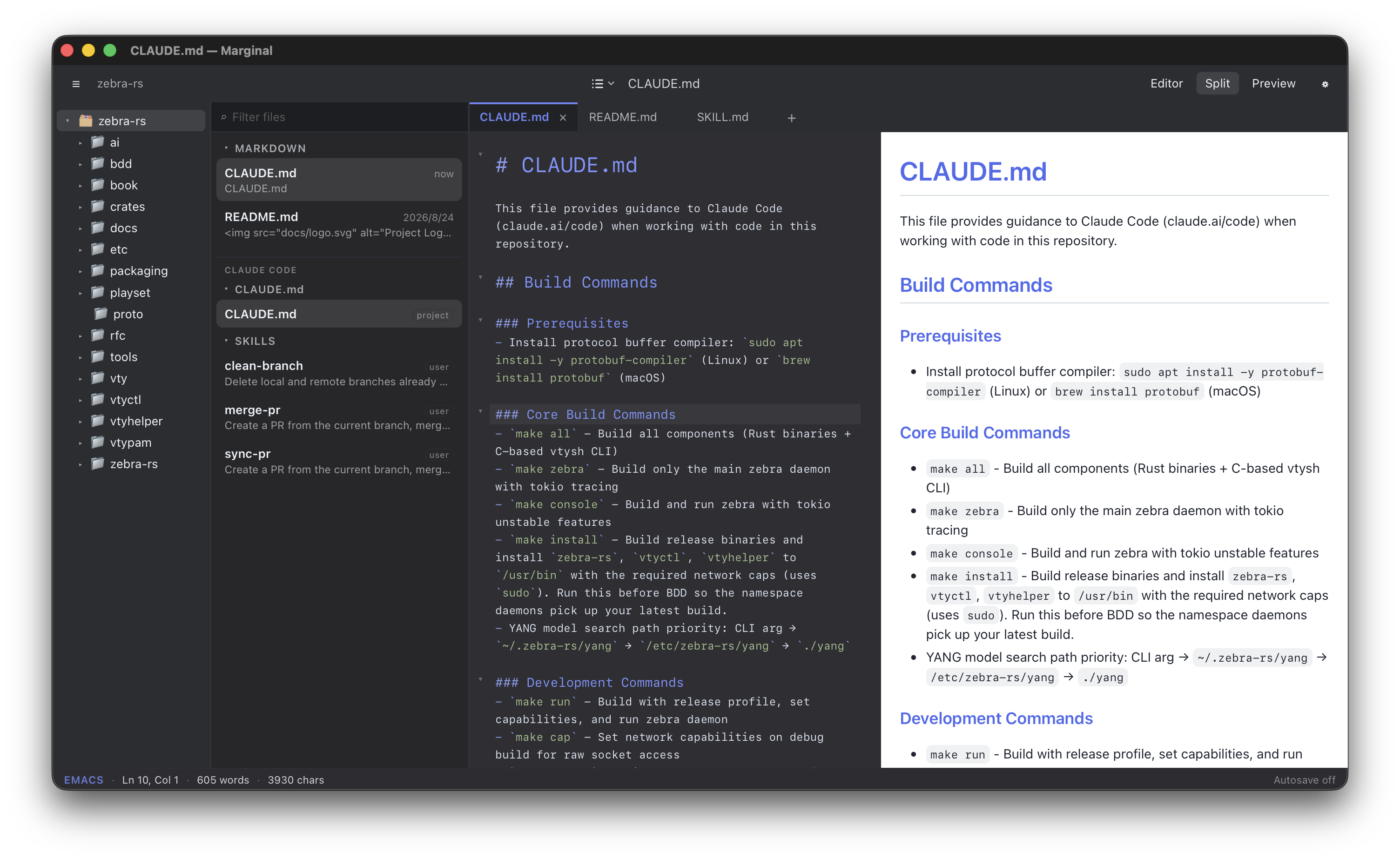
Marginal in split view on a zebra-rs workspace: the sidebar lists the folder tree, the markdown files, and the Claude Code sections CLAUDE.md and SKILLS; the editor and preview show CLAUDE.md side by side; the status bar shows the EMACS chip.
Knows where six coding agents keep their files Claude CodeCodexGrok BuildOpenCodeCursorQwen Code

01 — Coding agents

Your agent's files, found for you.

Pick your coding agent, Claude Code by default, and Marginal finds the CLAUDE.md or AGENTS.md in effect for the open folder, along with its skills, rules, sub-agents, and commands, and lists them in the sidebar. You no longer lose track of which ones apply to the current project.

  • Project, local, and user files, each badged with where it comes from
  • Skills listed by the name and description in their front matter
  • Switch the agent and the list rescans at once, no reopening the folder
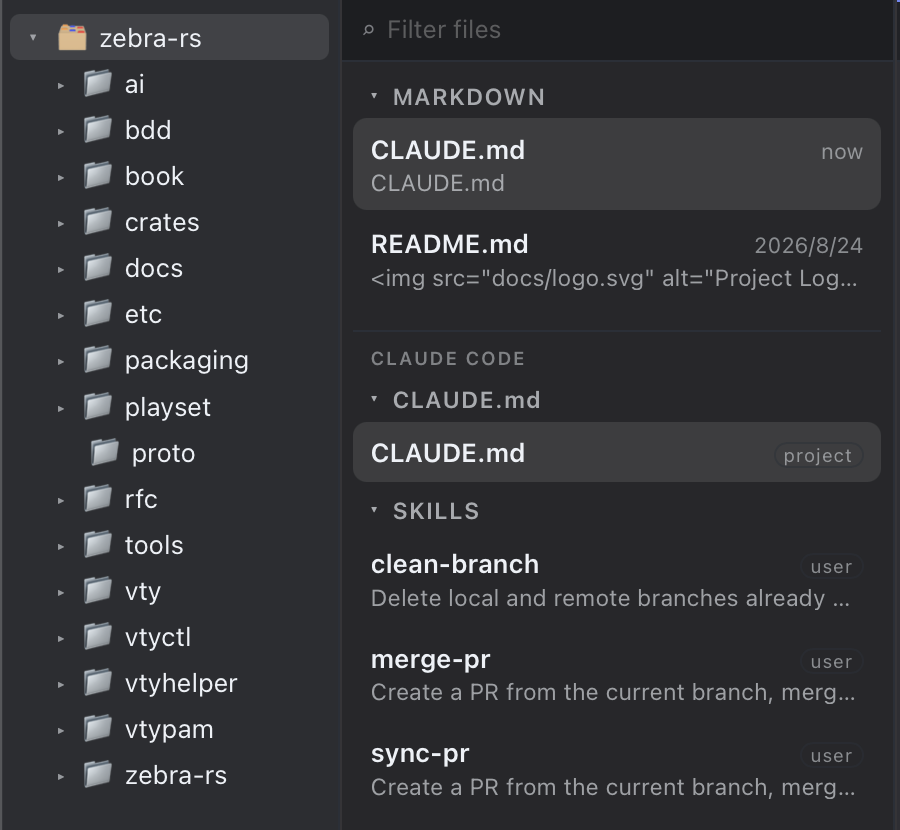
The sidebar: a folder tree on the left; on the right the MARKDOWN section with CLAUDE.md and README.md, then the CLAUDE CODE caption with a CLAUDE.md entry badged project and a SKILLS section listing clean-branch, merge-pr, and sync-pr, each badged user with its description.

02 — Files

Every markdown file, wherever it is.

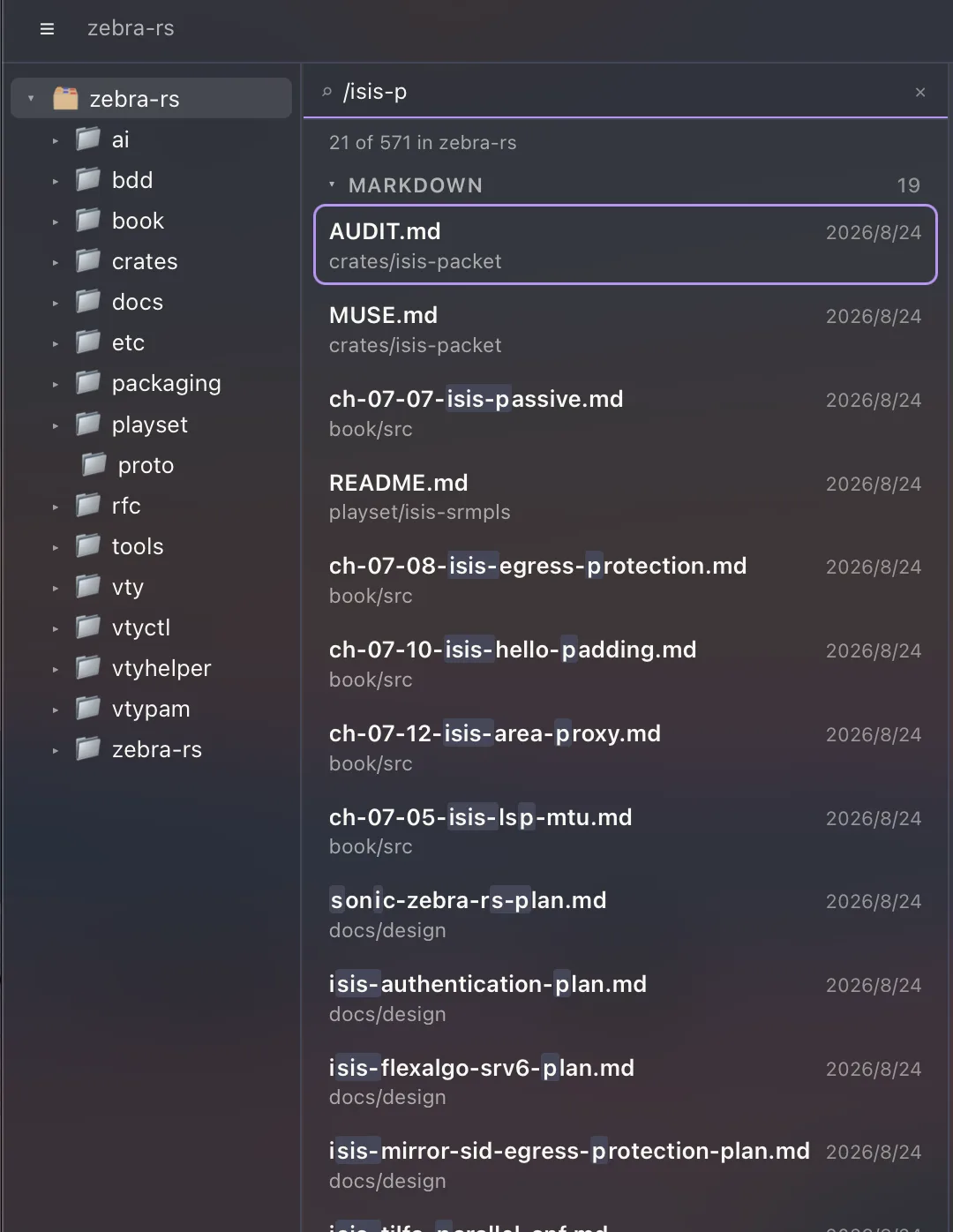
Turn on List files in subfolders in Settings and the list shows every markdown file under the selected folder. Type part of a path in the filter box, with a slash to match a directory, and the list narrows as you type.

  • Filter files (⌘⇧F) narrows the list and stays put while you work
  • Go to File (⌘T) jumps straight to a file by fuzzy path
  • Type > in the same panel to run any command by name
The file list filtered by /isis-p: 21 of 571 files match across the workspace, each shown with its folder, and the matched letters are highlighted.

03 — AI

Two AI interfaces.

One inside the editor, one in a terminal below it. Both run on the keys and the tools you already use.

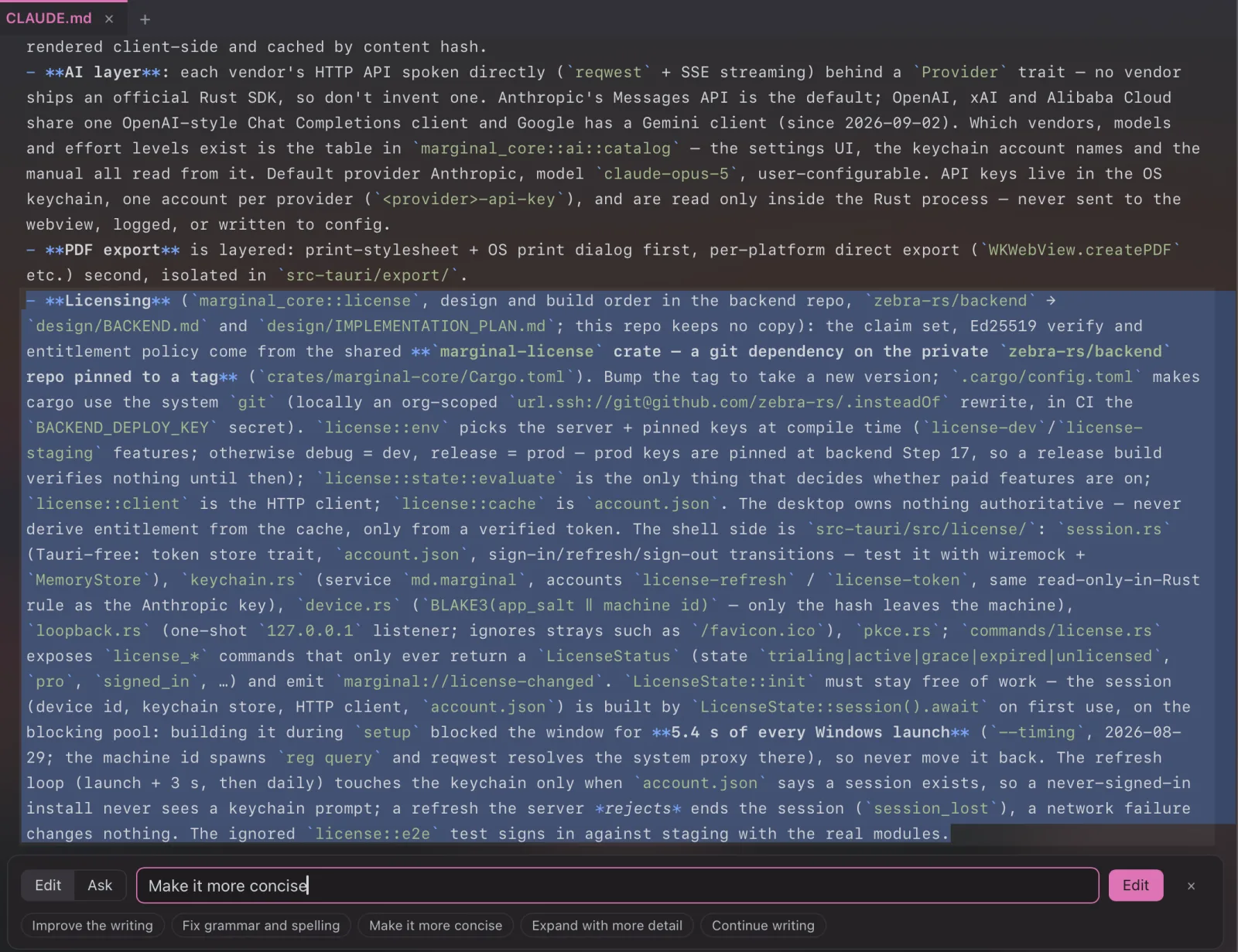
The ⌘K bar below the editor with a long selection highlighted and the prompt Make it more concise ready to send, next to presets such as Improve the writing and Fix grammar and spelling.

⌘K in the editor

Select some text, press ⌘K, and say what to do with it. The rewrite streams in as an inline diff, and you accept or reject it as a single undo step. It runs on your own API key from Anthropic, OpenAI, Google, xAI, or Alibaba Cloud, kept in the system keychain.
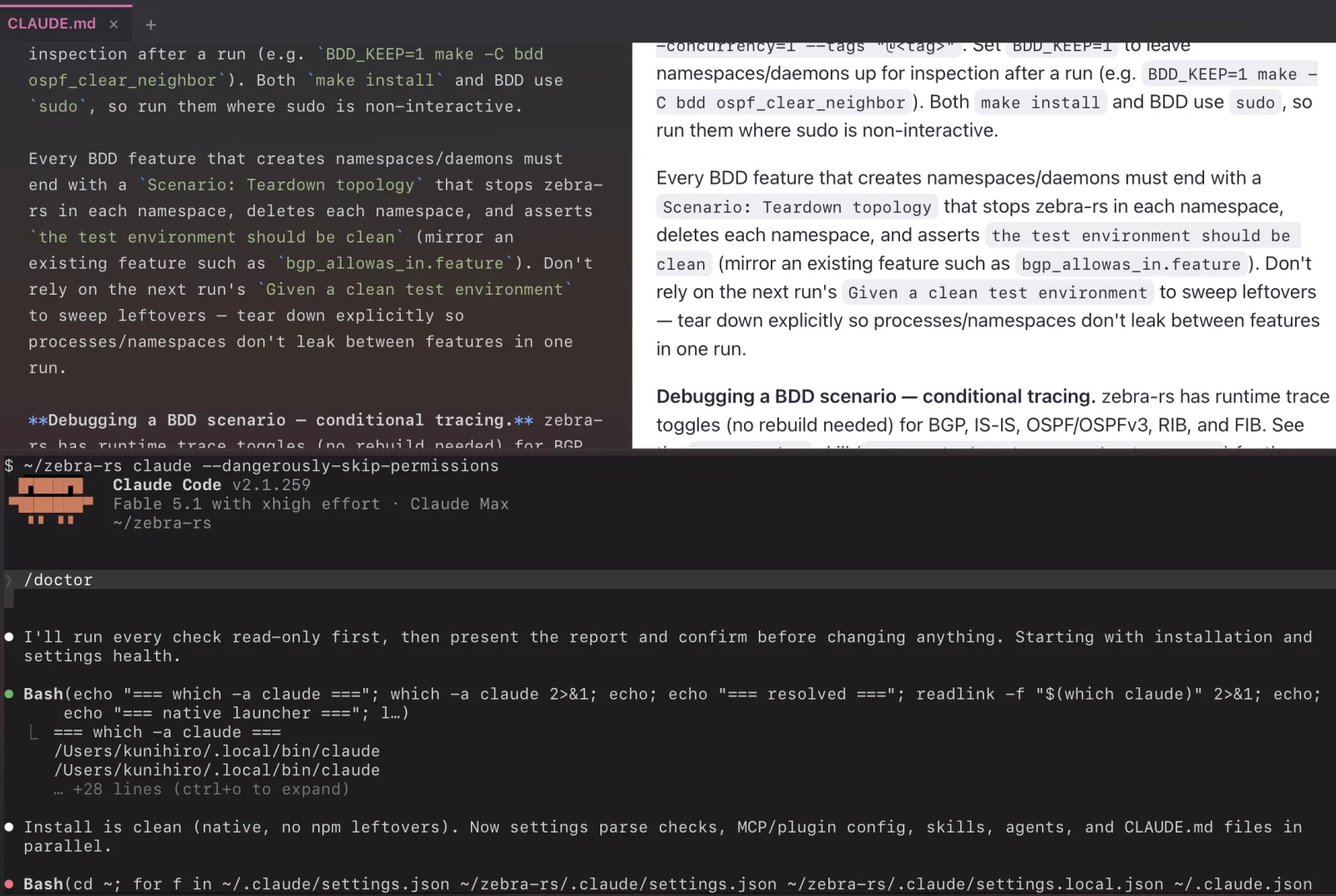
The terminal panel below the editor and preview, running Claude Code in the workspace: the /doctor command has started its checks.

⌘J for the coding agent

⌘J opens a terminal panel below the editor, so you can run claude or codex right there. When the agent writes to a file you have open, Marginal offers to reload it, and a new skill it saves appears in the SKILLS section without reopening the folder.

04 — Read & export

Open to read, then export.

Double-click a markdown file in the Finder and Marginal opens it in reading mode: only the rendered page, sized to the text, so you can focus on reading. Press Esc to get the editor back.

  • Export as PDF or HTML straight from the File menu
  • Print, PDF, and HTML use the same renderer as the preview
  • Exports always use your light theme, so a light theme doubles as your paper style
The reading view: a rendered document with a table and a footnote in a window with no editor chrome.

05 — Keys

Emacs and Vim, plus your own bindings.

Set the editing mode to Default, Emacs, or Vim, and the status bar shows which one is on. Emacs incremental search lands on the third readme the way it should, and Vim users get /, ?, n, and N as expected, with the Vim mode shown in the status bar too.

  • Bind your own shortcuts to editor and application commands
  • Ctrl stays free for editing on Windows and Linux; app shortcuts use Alt there
  • The scheme is saved per machine
Emacs — third occurrence of “readme”
C-s readme C-s C-s C-g
Vim — search and step
/ forward · ? backward · n N next, previous
Status bar
EMACS·Ln 10, Col 1·605 wordsAutosave off

06 — Themes

5 themes dark/light mode, or bring your own.

Five light and dark pairs are built in: Marginal, GitHub, Solarized, Zenburn, and Dracula. A theme is a single JSON file that styles the whole app, editor, preview, and exports. Drop your own into the themes folder and Marginal loads it without a restart.

Marginal Light
# Heading
Body text and link
`code`
Marginal Dark
# Heading
Body text and link
`code`
GitHub Light
# Heading
Body text and link
`code`
GitHub Dark
# Heading
Body text and link
`code`
Solarized Light
# Heading
Body text and link
`code`
Solarized Dark
# Heading
Body text and link
`code`
Zenburn Light
# Heading
Body text and link
`code`
Zenburn Dark
# Heading
Body text and link
`code`
Dracula Light
# Heading
Body text and link
`code`
Dracula Dark
# Heading
Body text and link
`code`

Get Marginal

macOS 12 or later, Windows 10 or later, and Linux on x86_64 or aarch64. One app per platform, no runtime to install.